Upgrading from the Modern Point of Sale (MPOS) app to the Store Commerce app on Windows is a key milestone for retailers looking to enhance performance, security, and user experience in their store operations. As Microsoft phases out MPOS, the MPOS to Store Commerce transition ensures alignment with the latest capabilities for Dynamics 365 Commerce and long-term platform support.
In this blog, we’ll guide you through a structured, step-by-step process for migrating from MPOS to Store Commerce App on Windows.
Why migrate from MPOS to Store Commerce App?
Migrating from Modern Point of Sale (MPOS) to the Store Commerce App on Windows in Dynamics 365 Commerce is recommended for several strategic and technical reasons:
1. Unified architecture
- Store Commerce App combines the best of MPOS and Cloud POS into a single application, reducing complexity.
- Offers a more consistent experience across devices (Windows, Android).
2. Enhanced security and compliance
- Built on a more secure architecture aligned with Microsoft’s latest standards.
- Benefits from regular security updates and long-term support, which MPOS will eventually phase out.
3. Performance Improvements
- Improved offline capabilities and faster synchronization.
- Better responsiveness in transaction processing and inventory operations.
4. Easier maintenance and updates
- Managed through Microsoft Store or MSI, allowing simpler deployment and version control.
- Reduces customizations needed for common features.
5. Future-ready
- MPOS is being deprecated in favor of the Store Commerce App.
- Microsoft is investing in enhancements only for the Store Commerce App moving forward, so migration ensures access to the latest features and innovations.
6. Improved integration
- Seamless integration with other Microsoft 365 tools and services.
- Better support for modern payment terminals and hardware.
Steps to Migrate from MPOS to Store Commerce on Windows
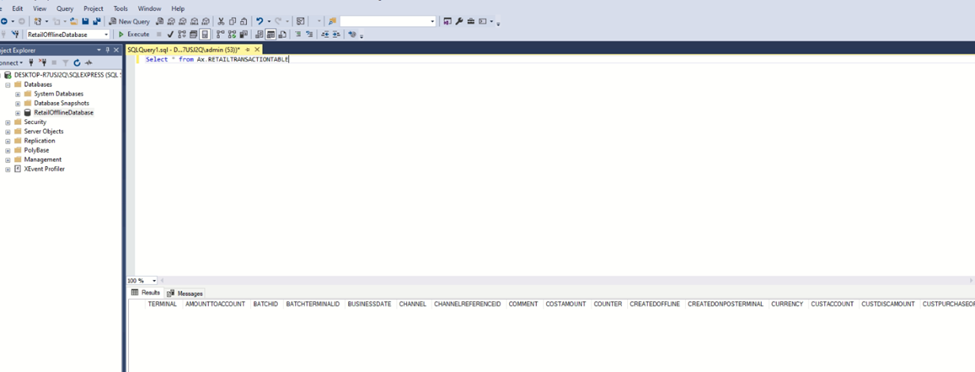
Step 1: Verify no transaction data in the POS offline database
Before migrating, confirm that no transaction data remains in the POS offline database to avoid data loss.
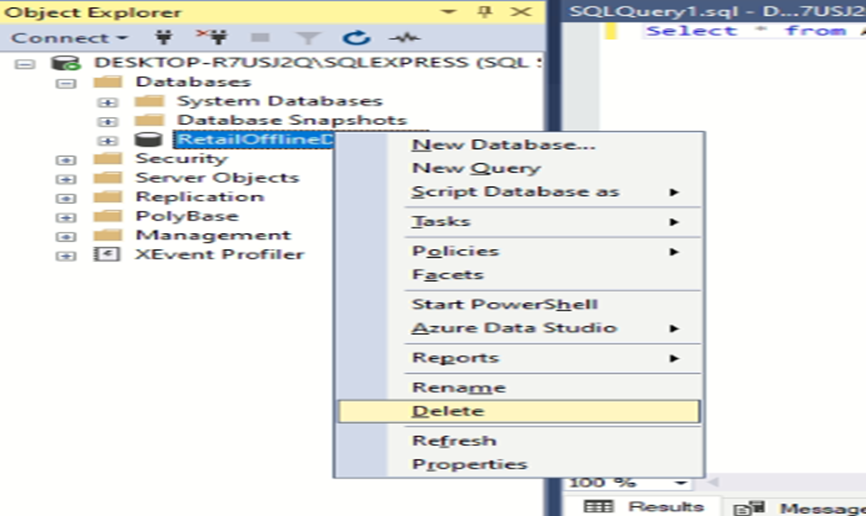
Run the following query in the RetailOfflineDatabase:

If the query returns no data, all transactions have been synced to the online state, and you can proceed with the migration.
Step 2: Uninstall the MPOS app
To remove the MPOS app from your system:
- Open Windows PowerShell as an administrator.
- Run the following command to identify the MPOS package name:

Example output: Microsoft.Dynamics.Retail.Pos_10.0.1591.108_x86__tfm0as0j1fqzt
- Run PowerShell as a user and execute:
Remove-AppxPackage -Package “Microsoft.Dynamics.Retail.Pos_10.0.1591.108_x86__tfm0as0j1fqzt”