
Azure Document Intelligence helps teams automate the extraction of text, tables, key-value pairs, and structured fields from documents such as invoices, receipts, contracts, identity documents, and business forms.
Instead of manually reading files and entering data into systems, enterprises can use AI document processing to turn documents into structured outputs that applications and workflows can use.
It is especially useful for automated document processing, document data extraction, invoice data extraction, and building end-to-end workflows with Azure Document Intelligence Power Automate integration.
What is Azure Document Intelligence?
Azure AI Document Intelligence is a Microsoft Azure AI service used for intelligent document processing. It applies OCR, machine learning, and document understanding models to analyze documents and extract useful information.
The service was previously known as Azure Form Recognizer, so you may still see that name in older documentation, connectors, or tutorials. Power Automate in the Microsoft connector also references Azure AI Document Intelligence, formerly Form Recognizer.
With Azure Document Intelligence, users can submit documents such as PDFs, images, scanned files, or forms. The service analyzes the content and returns structured data, often in JSON format, that can be used in business applications, databases, approval workflows, or reporting systems.
Why does Azure Document Intelligence matter?
Many business processes still depend on manual data entry. Teams often need to open documents, read values, copy information, validate fields, and move data into another system.
This creates common problems:
|
Manual document processing issue |
Business impact |
|
Slow data entry |
Delays in finance, HR, legal, and operations |
|
Human error |
Incorrect invoice totals, names, dates, or IDs |
|
Poor scalability |
More documents require more manual effort |
|
Unstructured data |
Hard to search, report, or automate |
|
Repetitive tasks |
Employees spend time on low-value work |
Azure Document Intelligence solves this by supporting OCR document processing, data extraction, and automation. It helps convert unstructured or semi-structured documents into usable business data.
Read more: Unlocking the hidden value of Microsoft Azure AI: An analysis of its total economic impact
How does Azure Document Intelligence work?
At a high level, the process works like this:
- A document is uploaded to Azure AI Document Intelligence.
- The selected model analyzes the document.
- The service detects text, layout, tables, fields, and key-value pairs.
- The extracted result is returned as structured data.
- The output can be sent to apps, databases, SharePoint, Dataverse, Teams, or Power Automate workflows.
This makes the service useful for document data extraction, AI invoice processing, customer onboarding, contract review, expense processing, and compliance workflows.
Take control of your business operations
Discover how Confiz services can simplify your complex workflows and improve decision-making.
Get a Free QuoteMain model types in Azure Document Intelligence
Azure Document Intelligence offers various model options based on the document type and the level of customization required. Microsoft supports prebuilt domain models and custom models for business-specific use cases.
|
Model type |
Best for |
Training required? |
|
Document analysis models |
General text, layout, tables, and key-value extraction |
No |
|
Azure Document Intelligence prebuilt models |
Common documents such as invoices, receipts, IDs, contracts, and business cards |
No |
|
Azure Document Intelligence custom models |
Unique internal forms, company-specific templates, or special document formats |
Yes |
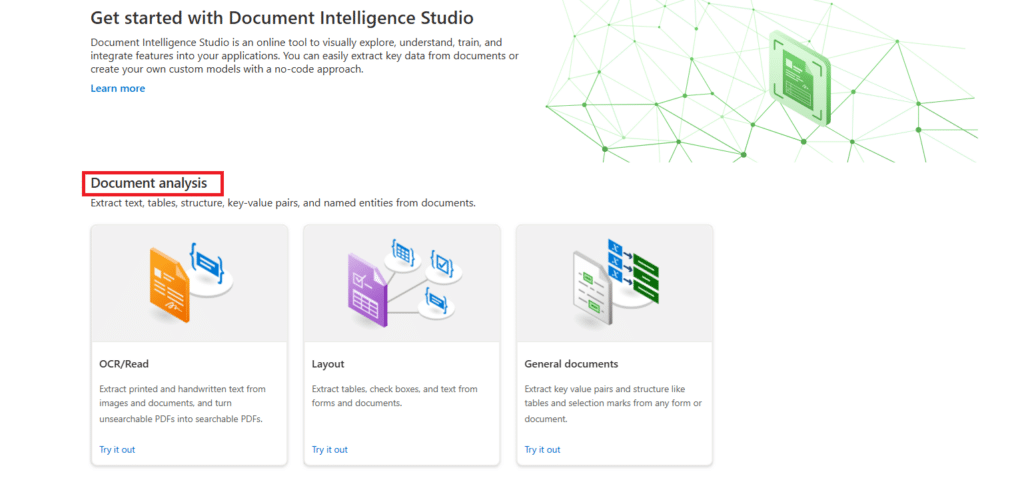
1. Document Analysis Models
Document analysis models are general-purpose models that understand the structure and content of documents.
They can detect:
- Text
- Tables
- Selection marks
- Key-value pairs
- Paragraphs
- Layout elements
- Document structure
These models are useful when the document type is unknown or when you only need general OCR document processing and layout extraction.
For example, if you receive mixed PDFs with tables, paragraphs, and labels, a document analysis model can help extract the basic structure before additional processing happens.
2. Azure Document Intelligence Prebuilt Models
Azure Document Intelligence prebuilt models are ready-to-use models trained for common business document types. These models do not require manual training or custom labeling.
You send the document to the relevant prebuilt model, and the service returns structured fields.
Below are the 13 major prebuilt models.
1. Invoice Model
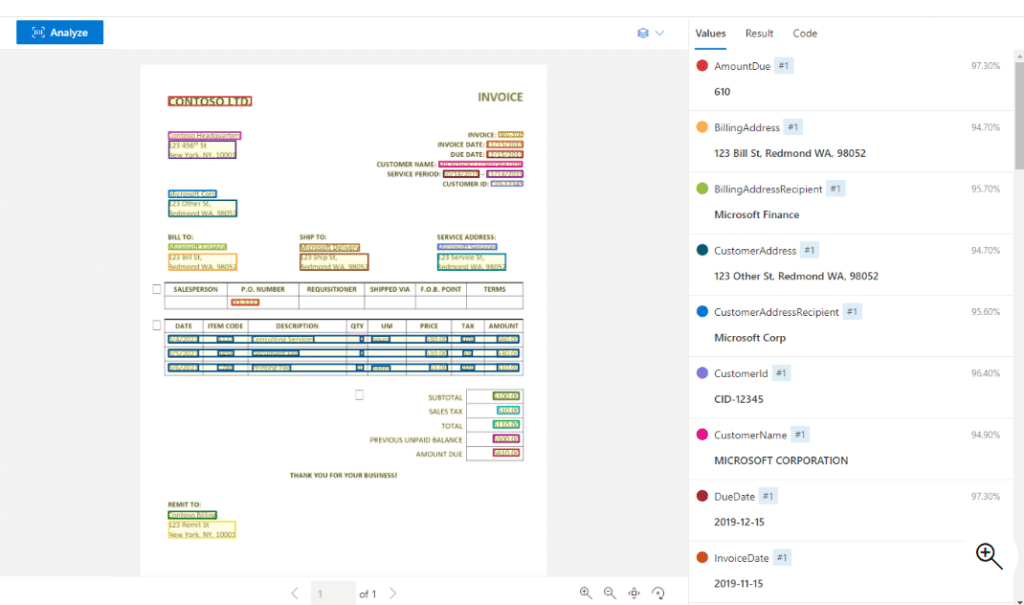
The Invoice Model extracts structured data from vendor and supplier invoices. It is one of the most common use cases for invoice data extraction, AI invoice processing, and Azure invoice processing.
It can extract fields such as:
- Invoice number
- Vendor name
- Vendor address
- Customer details
- Invoice date
- Due date
- Subtotal
- Tax amount
- Total amount
- Line items
- Product descriptions
- Quantity
- Unit price
Common use case
Businesses use the invoice model to automate accounts payable processes, reduce manual data entry, and improve financial accuracy.
2. Receipt Model
The Receipt Model extracts information from retail purchase receipts.
It can extract:
- Merchant name
- Transaction date
- Transaction time
- Purchased items
- Tax amount
- Total amount paid
Common use case
Organizations use this model for expense management, employee reimbursements, and receipt-based approval workflows.
3. Identity Document Model
The Identity Document Model extracts personal details from identity documents such as passports, driver’s licenses, and national ID cards.
It can extract:
- Full name
- Date of birth
- Gender
- Document number
- Expiry date
- Nationality
Common use case
This model is useful for onboarding, KYC processes, banking verification, identity checks, and customer registration workflows.
4. US Health Insurance Card Model
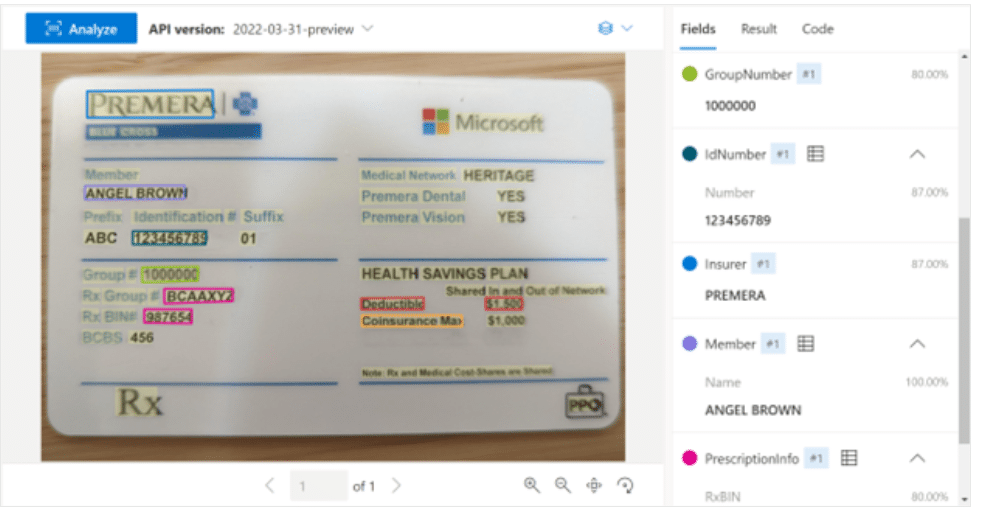
The US Health Insurance Card Model extracts information from healthcare insurance cards.
It can extract:
- Member name
- Insurance provider
- Prescription information
- Group number
- Policy number
Common use case
Healthcare providers can use this model to automatically capture patient insurance details during registration or medical processing.
5. US Personal Tax Model
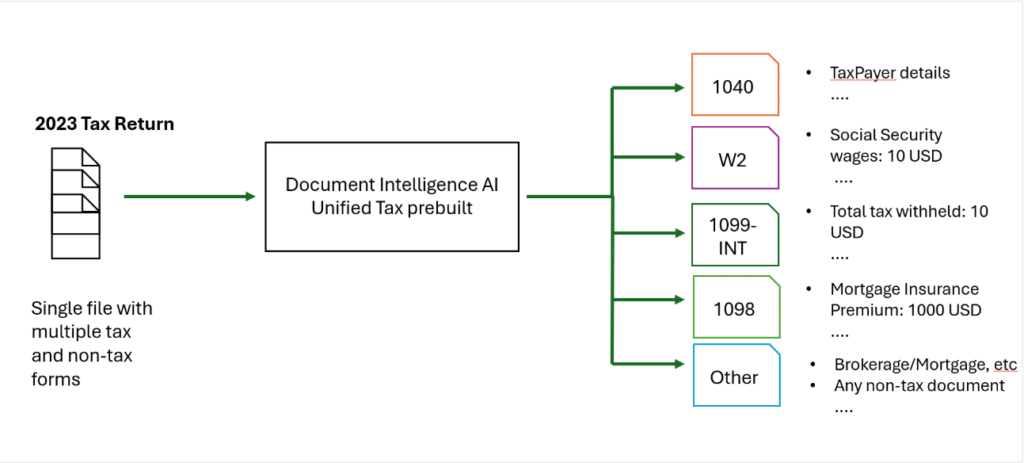
The US Personal Tax Model processes tax documents such as W-2 and 1099 forms.
It can extract:
- Employer details
- Employee information
- Income amounts
- Tax deductions
- Tax identification numbers
Common use case
Accounting firms, tax services, and finance teams can use this model to automate tax document processing for powerful automation in finance.
6. US Mortgage Documents Model
The US Mortgage Documents Model processes mortgage and property financing documents.
It can extract:
- Borrower information
- Property details
- Loan amount
- Interest rate
- Mortgage terms
Common use case
Banks, lenders, and financial institutions use this model to simplify loan application processing and mortgage document review.
7. US Pay Stubs Model
The US Pay Stubs Model extracts payroll information from employee pay slips.
It can extract:
- Employee name
- Employer name
- Payment period
- Gross earnings
- Deductions
- Net pay
Common use case
HR, payroll, and financial verification teams use this model for income verification and salary documentation.
8. US Bank Statement Model
The US Bank Statement Model extracts information from bank-issued financial statements.
It can extract:
- Account holder name
- Bank name
- Account number
- Transaction dates
- Deposits
- Withdrawals
- Account balance
Common use case
This model is helpful for financial analysis, auditing, loan verification, and customer financial review.
9. US Checks Model
The US Checks Model extracts information from bank checks.
It can extract:
- Payee name
- Date
- Amount
- Bank routing number
- Check number
Common use case
Banks and financial institutions use this model to automate check processing and verification.
10. Credit Card Model
The Credit Card Model extracts key information from credit card images or documents.
It can extract:
- Cardholder name
- Card number
- Expiration date
- Issuing bank
Common use case
This model can support payment verification and financial record processing where card details need to be captured securely.
11. US Marriage Certificate Model
The US Marriage Certificate Model extracts information from official marriage documents.
It can extract:
- Names of spouses
- Date of marriage
- Location of marriage
- Names of witnesses or officials
Common use case
Government agencies and record management teams can use this model for document digitization and official record processing.
12. Contract Model
The Contract Model extracts important information from legal agreements and contracts.
It can extract:
- Contract title
- Parties involved
- Agreement dates
- Terms and conditions
- Signatories
Common use case
Legal, procurement, and operations teams use this model for contract management, legal review, and compliance workflows.
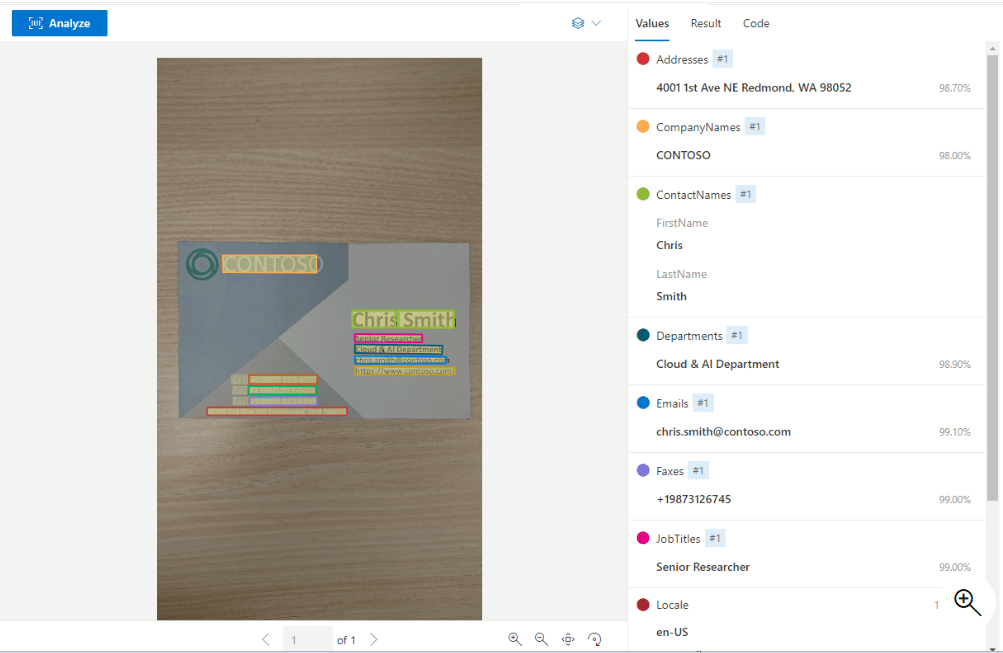
13. Business Card Model
The Business Card Model extracts contact information from business cards.
It can extract:
- Person’s name
- Job title
- Company name
- Phone number
- Email address
- Website
Common use case
Sales and marketing teams can use this model to automatically save contact details into CRM systems.
Prebuilt model comparison table
|
Prebuilt model |
Best for |
Example fields |
|
Invoice Model |
Azure invoice processing |
Invoice number, vendor, dates, totals, line items |
|
Receipt Model |
Expense claims |
Merchant, items, tax, total |
|
Identity Document Model |
ID verification |
Name, DOB, document number, expiry |
|
US Health Insurance Card Model |
Healthcare intake |
Member name, provider, group number |
|
US Personal Tax Model |
Tax processing |
Employer, employee, income, tax IDs |
|
US Mortgage Documents Model |
Loan processing |
Borrower, property, loan amount |
|
US Pay Stubs Model |
Payroll verification |
Earnings, deductions, net pay |
|
US Bank Statement Model |
Financial review |
Transactions, balance, account details |
|
US Checks Model |
Check processing |
Payee, amount, routing number |
|
Credit Card Model |
Payment verification |
Cardholder, card number, expiry |
|
US Marriage Certificate Model |
Official records |
Spouse names, marriage date, location |
|
Contract Model |
Contract review |
Parties, dates, terms, signatories |
|
Business Card Model |
CRM contact capture |
Name, company, phone, email |
3. Azure Document Intelligence Custom Models
Azure Document Intelligence custom models are used when prebuilt models do not match your document format or business requirements.
Custom models are useful when:
- Your organization uses internal forms
- Your documents have unique layouts
- You need to extract custom fields
- Your documents do not match any prebuilt model
- You process multiple document types
- You need a business-specific extraction workflow
There are two main custom model types: classification models and extraction models.
Accelerate growth at an unprecedented pace
Discover how Confiz can help you take control of your daily operations, increasing growth and revenue.
Book a Free ConsultationCustom Classification Model
A custom classification model identifies and categorizes documents into different types.
For example, a company may receive:
- Invoices
- Purchase orders
- Receipts
- Contracts
- Identity documents
The classification model analyzes the document and determines its type. This is useful when building an automated document-processing workflow in which documents must be routed before extraction.
Example
If a finance team receives mixed documents in one SharePoint folder, the classification model can identify whether a file is an invoice, receipt, or purchase order. Then the workflow can send the file to the correct extraction model.
Custom Extraction Model
A custom extraction model extracts specific fields from documents with known layouts.
It can extract fields such as:
- Names
- Dates
- Identification numbers
- Amounts
- Reference numbers
- Approval status
- Policy numbers
- Internal business fields
This is useful when standard prebuilt models are not enough and the business needs accurate document data extraction from custom templates.
Example
A company may have a custom onboarding form. A custom extraction model can be trained to extract employee name, joining date, department, manager name, employee ID, and approval status.
Prebuilt models vs custom models
|
Feature |
Prebuilt models |
Custom models |
|
Training required |
No |
Yes |
|
Setup time |
Faster |
Longer |
|
Best for |
Common document types |
Unique business documents |
|
Flexibility |
Limited to supported fields |
High |
|
Maintenance |
Lower |
Medium |
|
Accuracy control |
Based on a Microsoft-trained model |
Depends on training data and labels |
|
Example |
Invoice, receipt, ID, contract |
Internal form, custom template, company document |
|
Recommended when |
Your document type is supported |
Your document has unique fields or layout |
Which option is best?
The best option depends on the document type and the business goal.
|
Scenario |
Recommended model |
|
You need to extract text, tables, and layout |
Document analysis model |
|
You process vendor invoices |
Invoice prebuilt model |
|
You process employee receipts |
Receipt prebuilt model |
|
You verify identity documents |
Identity Document prebuilt model |
|
You process legal agreements |
Contract prebuilt model |
|
You process contact cards |
Business Card prebuilt model |
|
You have unique internal forms |
Custom extraction model |
|
You receive many document types |
Custom classification model |
|
You want a no-code workflow |
Azure Document Intelligence Power Automate |
For most teams, the best starting point is a prebuilt model. If the prebuilt model does not extract the required fields, then a custom model is the better choice.
Training and testing custom models
Training custom models requires sample documents and field labeling.
Training a classification model
To train a classification model:
- Upload labeled sample documents for each document category.
- Use Azure Document Intelligence Studio to prepare the training data.
- Train the classification model.
- Test it with new documents.
- Check whether the model correctly identifies each document type.
Training an extraction model
To train an extraction model:
- Upload sample documents.
- Label the fields that need to be extracted.
- Train the model.
- Test it using new documents.
- Review field accuracy.
- Improve labels or add more samples if needed.
Testing is important because real-world documents may vary in quality, format, layout, and scan clarity.
Connecting Azure Document Intelligence with Power Automate
Azure Document Intelligence Power Automate integration helps organizations create no-code or low-code document automation workflows.
This is useful when documents arrive through:
- SharePoint
- OneDrive
- Outlook email attachments
- Microsoft Teams
- Manual uploads
- Business applications
A Power Automate document-processing flow can send documents to Azure Document Intelligence, receive the extracted fields, and use those fields in the next workflow step.
Step-by-step: Azure Document Intelligence with Power Automate
Step 1: Create a flow
Open Power Automate and create either:
- Automated cloud flow
- Instant cloud flow
Common triggers include:
- When a file is created in SharePoint
- When a file is uploaded to OneDrive
- When an email attachment is received
- When a manual button is selected
Step 2: Add the Azure Document Intelligence connector
Add a new step and search for the Azure AI Document Intelligence connector.
In some environments, you may still see references to Azure Form Recognizer, because that was the previous service name.
Select the document analysis action that matches your use case.
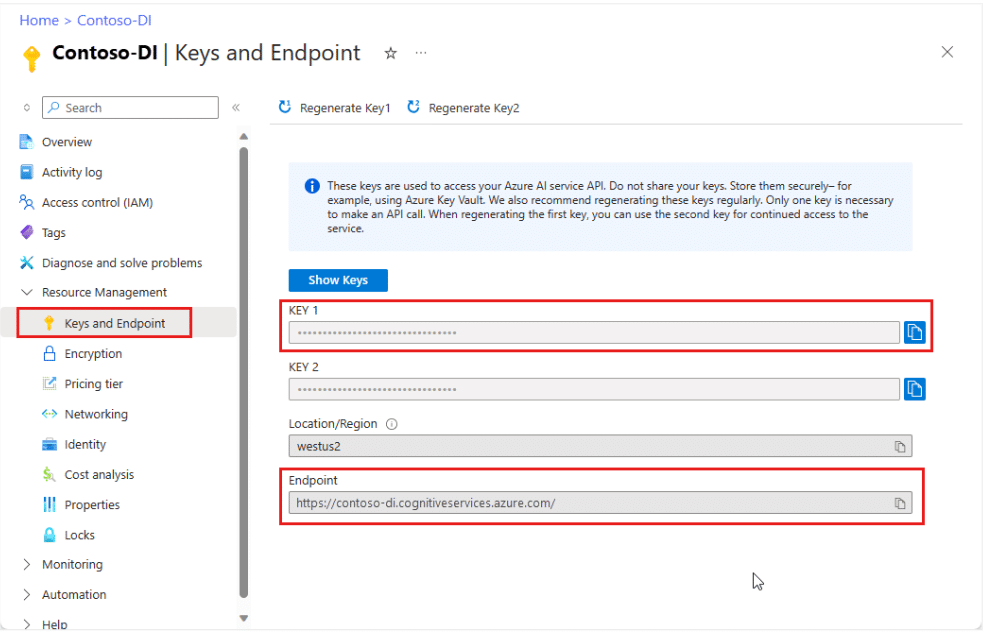
Step 3: Configure the connection
Provide the required connection details:
- Azure endpoint
- API key or authentication method
- Model ID
- Document input
The model ID can refer to either:
- A prebuilt model
- A custom model
Step 4: Provide the document input
Pass the document file content from the trigger into the Azure Document Intelligence action.
Examples include:
- SharePoint file content
- OneDrive file content
- Email attachment content
- Uploaded PDF file
- Uploaded image file
Step 5: Retrieve extracted data
After the document is processed, Power Automate receives structured fields such as:
- Names
- Dates
- Addresses
- Invoice numbers
- Amounts
- Line items
- Table values
- Document IDs
Step 6: Use the extracted data in a workflow
The extracted data can be used to:
- Update SharePoint lists
- Store records in Dataverse
- Save values in Excel
- Send approval requests
- Trigger Outlook emails
- Send Microsoft Teams notifications
- Route documents to departments
- Create audit logs
- Flag documents for manual review
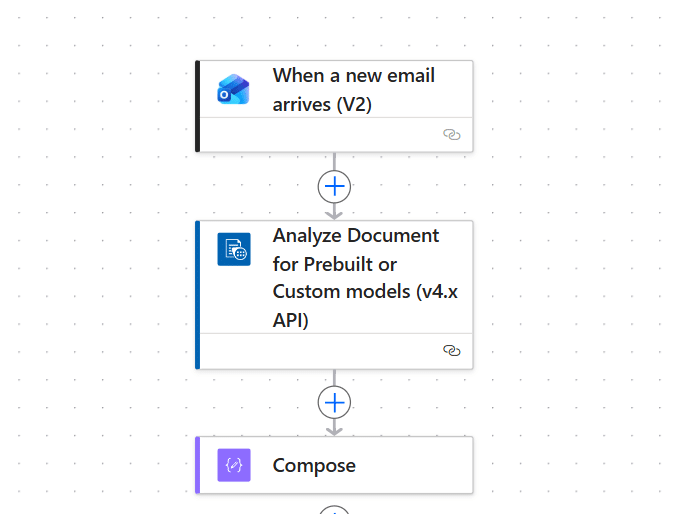
This creates a complete Power Automate document processing solution.
Common business use cases
|
Use case |
How Azure Document Intelligence helps |
|
Invoice processing |
Extracts invoice number, vendor, dates, totals, and line items |
|
Expense management |
Extracts receipt details for claims and reimbursements |
|
Customer onboarding |
Extracts identity document data |
|
Contract management |
Extracts parties, dates, terms, and signatories |
|
Healthcare intake |
Extracts insurance card information |
|
Loan processing |
Extracts mortgage and bank statement details |
|
Payroll verification |
Extracts pay stub information |
|
Tax processing |
Extracts W-2 and 1099 details |
|
CRM updates |
Extracts business card contact information |
Benefits of Azure Document Intelligence
Using Azure AI Document Intelligence for intelligent document processing provides several benefits:
- Reduces manual data entry
- Speeds up document handling
- Improves data accuracy
- Supports structured data output
- Works with prebuilt and custom models
- Helps automate business workflows
- Supports scalable automated document processing
- Improves AI document processing use cases
- Enables better OCR document processing
- Works well with Power Automate and Microsoft business tools
Best practices for better results
To get better output from Azure Document Intelligence, follow these best practices:
- Start with a prebuilt model if your document type is supported.
- Use a custom model only when prebuilt fields are not enough.
- Use high-quality PDFs or clear scanned images.
- Avoid blurry, tilted, or low-resolution documents.
- Train custom models with real document samples.
- Label fields consistently.
- Test models with different document variations.
- Add validation checks before saving extracted data.
- Use confidence scores to decide when manual review is needed.
- Add exception handling in Power Automate.
- Keep sensitive data handling and access control in mind.
- Monitor model performance over time.
FAQs
What is Azure Document Intelligence?
Azure Document Intelligence is a Microsoft Azure AI service that extracts text, tables, key-value pairs, and structured fields from documents. It is used for automated document processing, document data extraction, and workflow automation.
Is Azure Document Intelligence the same as Azure Form Recognizer?
Yes. Azure Form Recognizer was the previous name of the service. The current name is Azure AI Document Intelligence.
What is Azure Document Intelligence used for?
It is used for AI document processing, invoice processing, receipt processing, identity verification, contract analysis, tax document processing, bank statement processing, and custom form extraction.
Can Azure Document Intelligence process invoices?
Yes. The invoice prebuilt model supports invoice data extraction and can extract invoice numbers, vendor details, dates, totals, taxes, and line items. This makes it useful for AI invoice processing and Azure invoice processing.
What are Azure Document Intelligence and prebuilt models?
Azure Document Intelligence prebuilt models are ready-to-use models for common business documents such as invoices, receipts, identity documents, health insurance cards, tax forms, mortgage documents, pay stubs, bank statements, checks, credit cards, marriage certificates, contracts, and business cards.
How many prebuilt models are covered in this blog?
This blog covers 13 prebuilt models:
- Invoice Model
- Receipt Model
- Identity Document Model
- US Health Insurance Card Model
- US Personal Tax Model
- US Mortgage Documents Model
- US Pay Stubs Model
- US Bank Statement Model
- US Checks Model
- Credit Card Model
- US Marriage Certificate Model
- Contract Model
- Business Card Model
What are Azure Document Intelligence and custom models?
Azure Document Intelligence custom models are models trained on your own documents. They are useful when your documents have unique layouts, custom fields, or business-specific formats.
What is the difference between a custom classification model and a custom extraction model?
A custom classification model identifies the document type. A custom extraction model extracts specific fields from the document.
For example, classification can identify a document as an invoice, receipt, or contract. Extraction can then pull values such as invoice number, total amount, contract date, or customer name.
Can Azure Document Intelligence work with Power Automate?
Yes. Azure Document Intelligence Power Automate integration enables users to create automated workflows that analyze documents, extract data, and send results to systems such as SharePoint, Dataverse, Excel, Outlook, or Teams.
What is Power Automate document processing?
Power Automate document processing means using Power Automate to trigger a workflow when a document is received, send it to Azure Document Intelligence, retrieve extracted fields, and use those fields in automated business processes.
Which Azure Document Intelligence model should I use first?
Use a prebuilt model first if your document type is supported. Use a custom model when your document layout is unique or when you need fields that prebuilt models do not extract.
Conclusion
Azure Document Intelligence helps organizations replace manual document handling with scalable intelligent document processing. It supports OCR, machine learning, prebuilt models, custom models, and workflow automation.
For common documents, Azure Document Intelligence prebuilt models provide a fast way to extract structured data. For unique business documents, Azure Document Intelligence custom models offer more control and flexibility.
When combined with Azure Document Intelligence and Power Automate, businesses can build end-to-end automated document-processing workflows that reduce manual effort, improve accuracy, and speed up document-heavy operations.