Creating custom workspaces in Dynamics 365 F&O to boost user productivity

D365 custom workspaces

Creating custom workspaces in Microsoft Dynamics 365 for Finance and Operations allows users to tailor their experience to meet specific business needs. Workspaces provide a centralized hub where users can access relevant data, actions, and reports.

In this blog, we’ll explore custom workspaces in Dynamics 365 Finance and Operations, their benefits, and provide a step-by-step guide to help you get started.

What are custom workspaces in Dynamics 365 Finance and Operations?

Custom workspaces in Dynamics 365 Finance and Operations are personalized dashboards that allow users to access key data, tasks, and reports in one place. They enhance productivity by consolidating relevant information, streamlining workflows, and reducing navigation time. Users can customize these workspaces with specific tiles, lists, and charts to match their roles and business needs, improving efficiency and decision-making.

In simple terms, D365 workspaces act as role-based work centers inside the application. Instead of moving through multiple menus and pages, users can open one focused area that surfaces the transactions, lists, KPIs, links, and reports they need most often. Microsoft describes workspaces as work centers designed to improve efficiency for daily tasks.

What are the benefits of using custom workspaces?

Using custom workspaces in Dynamics 365 Finance and Operations (D365 F&O) offers several benefits, including improved efficiency, personalized user experience, and better data accessibility. Here are the key advantages:

  • Boosts productivity: Centralized access to essential tools reduces navigation time.
  • Personalized experience: Customizable for individual roles with quick access features.
  • Faster decisions: Real-time KPIs and Microsoft Power BI integration for better insights.
  • Efficient workflows: Automates task-specific functions and direct-action execution.
  • Simplifies training: Easier navigation reduces reliance on IT support.
  • Better data visibility: Quick access to critical data and analytics.
  • Seamless integration: Connects with Excel, Power BI, and Power Automate for enhanced collaboration.

Microsoft also supports adding saved views to workspaces as tiles, lists, or links. That means filtered data sets and personalized views can be surfaced directly inside a workspace, making it easier for users to act on the right data without repeated manual filtering.

Why D365 workspaces matter for modern teams?

As organizations scale, users often struggle with scattered navigation, too many clicks, and inconsistent access to key records. Well-designed D365 workspaces help solve that by creating role-specific landing areas for finance teams, procurement teams, operations users, and managers. Instead of relying on generic navigation, each team can work inside a more focused environment built around daily priorities.

This is one of the strongest advantages of Microsoft D365 workspaces: they improve usability without always requiring a full redevelopment of the application experience. In many cases, the right combination of personalization, saved views, workspace filters, and Microsoft Dynamics 365 workspace tiles can create a far more efficient user journey.

Steps to create a custom workspace in Dynamics 365 Finance and Operations

1: Enable personalization

Ensure that personalization is enabled for the environment:

  • Navigate to System Administration > Setup > Personalization.
  • Ensure the required users have the Manage and Save permissions.

2: Create a new workspace

  1. Navigate to the dashboard (home page).
  2. Click the Personalize this page option (usually under the gear icon).
  3. Select Add a workspace.
  4. A new, empty workspace will be created.

3: Configure the workspace

Rename the workspace

  • Right-click on the new workspace’s title.
  • Select Personalize and enter a custom name.

 Add tiles, lists, and links

  • Open a relevant form or list page.
  • Click on the Options tab in the top menu.
  • Select Add to workspace and choose the target workspace.
  • Define the tile type (count tile, direct link, etc.).
  • Configure the display properties.

 Add Power BI Reports (Optional)

  • If Power BI is embedded, you can add a Power BI dashboard to the workspace.
  • Navigate to System Administration > Setup > Power BI.
  • Enable and configure the necessary reports.

4: Save and publish

  • Once customized, the workspace is available on the dashboard.
  • Users can reset their workspace if needed by removing personalization.

Personalization vs customization in Dynamics 365

One of the most common sources of confusion is the difference between customizing Dynamics 365 and personalizing it. Microsoft distinguishes personalization from deeper development-based changes. Personalization is typically a user-level or admin-managed UI adjustment, while customization usually involves development work, extensions, X++, form patterns, or other changes in the application model.

This matters because not every request for a D365 custom workspace requires code. Some scenarios can be solved with saved views, workspace filters, links, and user personalization. Others require deeper form customization in Dynamics 365 or developer-built workspace components.
Take control of your business operations

Discover how Confiz services can simplify your complex workflows and improve decision-making.

When personalization is enough

  • Reordering or exposing relevant information for users
  • Adding saved views to workspaces
  • Creating user-specific workspace layouts
  • Surfacing lists, links, and filtered data for daily work

When customization is needed

  • Building new workspace forms
  • Creating new tiles and form parts
  • Extending navigation and menu items
  • Adding custom logic, caching, counts, or advanced workspace behavior

How do workspace tiles improve usability?

A big part of successful Dynamics 365 workspaces is tile design. D365 workspace tiles and Microsoft Dynamics 365 workspace tiles help users see counts, jump to records, and navigate quickly to frequent actions. Microsoft documents tiles as core components of workspace experiences and also provides guidance on creating icons for workspace tiles and configuring tile behavior in development scenarios. Well-designed Dynamics 365 workspace tiles can:
  • Surface important record counts
  • Launch users into targeted forms or workspaces
  • Improve discoverability of high-value actions
  • Reduce dependency on deep menu navigation

Using saved views in workspaces

Saved views are especially useful when teams want different filtered versions of the same page. Microsoft notes that views can be added to workspaces as tiles, lists, or links, and that saved views support applies to both modeled workspaces and user-created workspaces. This makes saved views highly relevant to Workspace Dynamics 365 design because users can create more focused experiences without rebuilding an entire page. For example, a finance manager could surface overdue approvals, a procurement user could pin vendor-related records, and an operations team could expose only location-specific transactions.

Workspace filters and focused data experiences

Microsoft also provides support for configuring and filtering workspaces. Workspace-wide filters can make a custom workspace more practical by allowing users to limit what they see based on business context. This is especially helpful when one workspace supports multiple teams, entities, or process variations. If your goal is better Microsoft D365 workspaces, filters should be considered early in the design, not as an afterthought. A cluttered workspace with too much data can slow users down just as much as poor navigation.

Advanced custom workspaces (Using development)

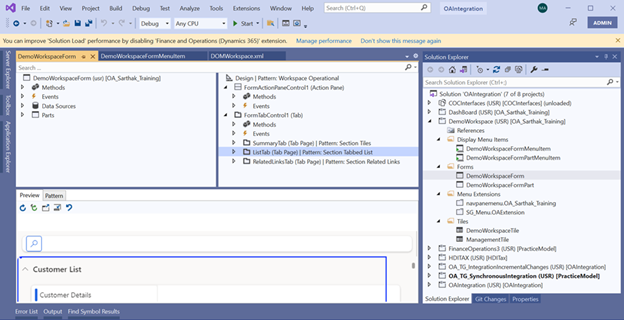
For deeper customizations, you can develop a custom workspace in Visual Studio by creating a new form of type Workspace. Adding required data sources, grids, and tiles. Here we'll explore how to create a workspace from the backend using X++:

1: Define a new menu item for the workspace

Create a display menu item and define your workspace form in the Object property.

2: Create new form for the workspace

This form will host the tiles, lists, links, and other elements that make up your workspace in Dynamics 365 finance operation (D365FO).

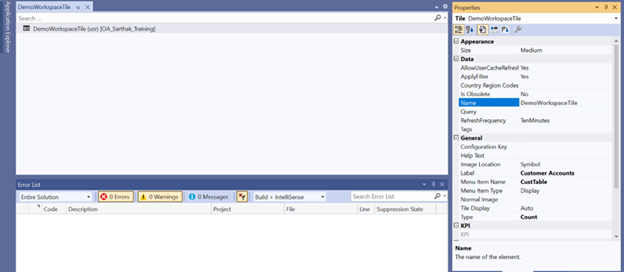
3: Create tile element for the custom form (D365FO) X++

In Microsoft Dynamics 365 for Finance and Operations, a tile is a UI component that provides users quick, visual access to key data and actions. Tiles are often used within workspaces to display summarized information or to provide navigation to other parts of the application.
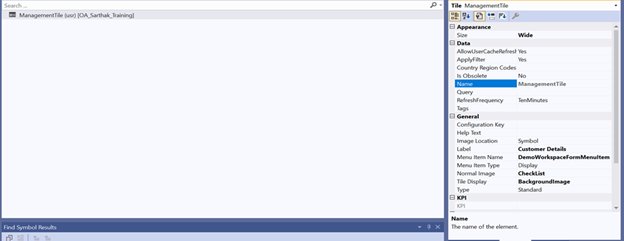
In the custom workspace form (d365fo), we must add elements to complete the workspace form from the backend. In this step, we are creating a tile and setting the menu item name to form name.

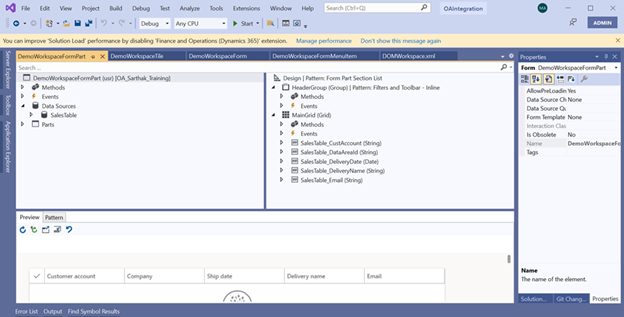
4: Create form part for the workspace form D365 F&O x++

In Dynamics 365 Finance and Operations, a form part is a reusable component that represents a section of a form.

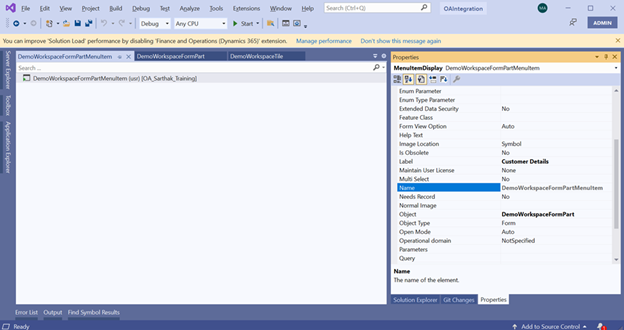
5: Create menu item of form part (D365 F&O)

Creating a menu item for a form part in Microsoft dynamics 365 for Finance and Operations allows you to add the form part to navigation menus and make it accessible to users.

6: Add necessary elements to the workspace form

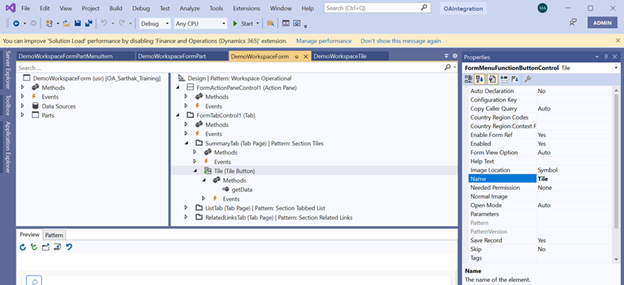
Create a tile button on the custom workspace form, and set your tile name in the tile property.
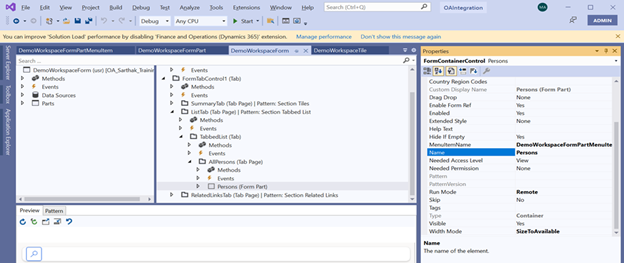
Create a form part on the custom workspace form D365fo. Add your form part menu item to the menu item name property and set the run mode property to remote. The difference between the "Local" and "Remote" settings in the "Run mode" property of a form part is that when the form part is called Remote, there is no coupling between the form part and the caller form. So, no linking of data sources and no element.caller() object. And as Remote the form part is executed in a separate session. With Local, it is the other way around. You can link data sources and work with the element.caller().
In Dynamics 365 Finance and Operations (D365FO), the Related Links tab is a feature in workspaces and forms that provides users with quick access to additional forms, reports, or pages that are contextually related to the current workspace or form. This tab enhances navigation by allowing users to quickly jump to other relevant areas of the application without leaving the current context.

Accelerate growth at an unprecedented pace

Discover how Confiz can help you take control of your daily operations, increasing growth and revenue.

7: Show record count on tile

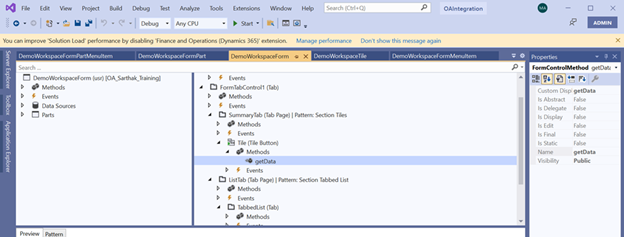
To show the record count on the tile, you need to override the getdata() method of the tile button.
[Form] public class DemoWorkspaceForm extends FormRun { [Control("MenuFunctionButton")] class Tile { /// /// Count no. of record on tiles /// /// ret public TileButtonControlData getData() { Custtable custtable; int customerCount; TileButtonControlData ret;
        ret = super();

        select count(RecId) from custtable;
        customerCount = (CustTable.RecId)
        ret.strTileData(int642Str(CustTable.RecId));

        return ret;
    }
}
}

8: Create a tile for the workspace form

In this blog, we created two tiles, one for the custom form and the second for the workspace form. This tile is used for the navigation menu which is the workspace from the dashboard.

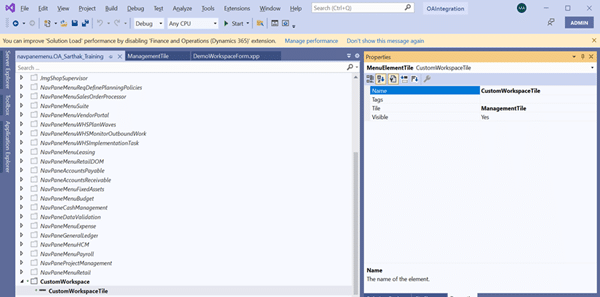
9: Create an extension of the navigation menu

The navigation menu name from the backend is navpanemenu. Create an extension and add a tile that has a workspace form menu item.

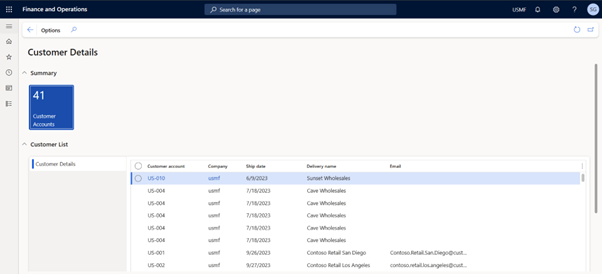
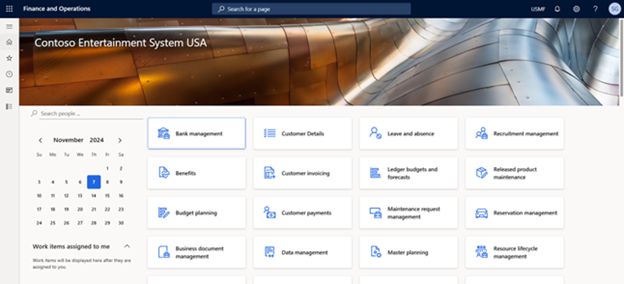
Workspace from frontend

Add a workspace to your custom model

Best practices for designing better D365 custom workspace experiences

  • Whether you are working on user-led personalization or deeper D365 customization, these practices can improve the result:
  • Keep each workspace role-focused instead of trying to serve everyone
  • Use only the most relevant Microsoft Dynamics 365 workspace tiles
  • Add saved views where filtering is important
  • Avoid overloading pages with too many lists or metrics
  • Use clear labels and meaningful navigation paths
  • Test workspace performance when tiles or lists depend on complex queries
  • Decide early whether the requirement needs personalization or full form customization in Dynamics 365

Common use cases for Dynamics 365 workspaces

Some of the most valuable use cases for Dynamics 365 workspaces include:
  • Finance review workspaces with KPI tiles and pending approvals
  • Procurement workspaces with supplier actions and PO monitoring
  • Operations workspaces with filtered execution lists
  • Management workspaces with Power BI visuals and exception tracking
  • Team-specific landing pages created through D365 custom workspace design
  • These scenarios make Workspace Dynamics 365 more than a UI preference. They turn it into a practical productivity layer across the ERP experience.

Summing up

Custom workspaces in Dynamics 365 F&O provide a personalized, streamlined experience, enabling users to access key tasks, data, and reports efficiently. By reducing manual effort and enhancing navigation, they drive productivity and smarter decision-making across business operations. Implementing custom workspaces helps businesses optimize workflows and improve system usability. Need help setting up custom workspaces? Contact us at marketing@confiz.com to get started!

About the author

Rabia Qasim

Rabia is a skilled Microsoft Dynamics 365 Developer who specializes in customizing and developing solutions to enhance business processes. As a software engineer at Confiz, she configures workflows, automates tasks, and ensures seamless data flow across systems. Collaborating closely with stakeholders, Rabia delivers tailored solutions that significantly improve business operations.

New to implementation
guide?

Start here to understand how it’s reshaping the future of intelligent systems.

Subscribe

Get exclusive insights, curated resources and expert guidance.