
Year-end close in Dynamics 365 is not just about closing one fiscal year and opening another. It is the point at which your financial data is finalized, profit-and-loss balances are transferred, and opening balances for the new fiscal year are created. In Microsoft’s year-end close process, balance sheet accounts are carried forward, profit and loss balances are closed to retained earnings, and the close can be run again if post-close adjustments are needed.
This is why the setup behind the process matters. If fiscal year close parameters, retained earnings mapping, account classifications, or closing-period entries are not handled properly, the close may complete technically but still create issues in reporting and opening balances.
What does a year-end close do in Dynamics 365 Finance?
In Dynamics 365 Finance, the year-end close finalizes the financial year by moving balances that should continue into the next fiscal year and closing out those that should not. The system creates opening balances for the new year and transfers profit and loss activity to the retained earnings account configured for year-end results.
From a finance operations point of view, the process is used to:
- Finalize the year’s financial activity
- Close revenue and expense accounts
- Carry forward balance sheet balances
- Move the net result to retained earnings
- Prepare the new fiscal year with correct opening balances
That is the core purpose of the process in your draft as well, and it remains the right way to explain it.
Why does this process need preparation, not just execution?
A lot of teams treat year-end close as a single activity done at the end of the period. In practice, it depends on several checks being completed before the close is run.
The process works best when the current year is fully posted, subledgers are reconciled, the next fiscal year already exists, main accounts are correctly typed, and the retained earnings account is ready to receive profit-and-loss balances. Your original draft correctly emphasizes all of these points.
Microsoft also states that the next fiscal year must exist before the year-end close is run; otherwise, beginning balances cannot be created in the opening period. It also confirms that a closing period is used to separate year-end entries from regular operational periods.
Take control of your business operations
Discover how Confiz services can simplify your complex workflows and improve decision-making.
Get a Free QuoteWhat to complete before running the year-end close?
Before you run the close, make sure the following items have been checked.
1. Finish all current-year postings
All transactions for the current fiscal year should already be posted. This includes journals and module transactions that are expected to affect year-end balances. If anything is still pending, the year-end result will be incomplete.
2. Run inventory close where it is required
If inventory valuation depends on methods such as weighted average, inventory closing should be completed first so inventory values are accurate before the General Ledger close is run. This point from your draft is important because inventory valuation can directly affect final balances.
3. Reconcile subledgers to the General Ledger
Accounts Payable, Accounts Receivable, Bank, and Fixed Assets should match the General Ledger before the close is started. Year-end close should not be used as a shortcut for unresolved reconciliation differences.
4. Review period status carefully
Operational periods that no longer need posting should be closed, but the closing period must remain open so year-end adjustments can still be posted. Microsoft notes that the closing period is specifically meant to separate year-end entries from normal activity, which is why this step matters.
5. Check the main account setup
Main accounts need to be correctly defined so the system handles them properly during close. In practical terms, you want to be sure the accounts that should roll forward behave like balance sheet accounts, while profit and loss accounts are handled through retained earnings at close. Your draft highlights this clearly and it should stay in the article.
6. Confirm the retained earnings account
The retained earnings account must be configured in automatic transactions so profit and loss balances can be moved correctly during year-end close. This is a core setup dependency, not a minor option.
7. Create the next fiscal year in advance
The next fiscal year must already exist in the financial calendar. If it does not, the system will not be able to create opening balances in the new year. Microsoft explicitly calls this out in its close-fiscal-year guidance.
8. Review the trial balance before you close
The trial balance should be reviewed for completeness and accuracy before the year-end close is initiated. This sounds obvious, but it is one of the most important checks in the whole process because it tells you whether the close is starting from reliable numbers.
Where is year-end close behavior controlled?
The main setup is managed here:
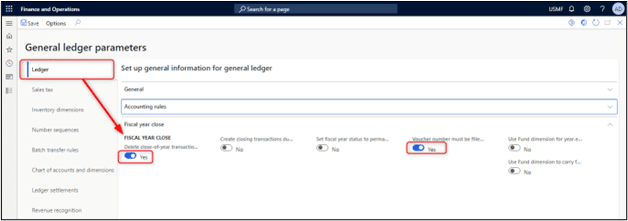
General ledger > General ledger parameters > Ledger > Fiscal year close
This is where some of the most important year-end settings are defined.
Step 1: Delete existing year-end entries when re-closing the year
This option is used to specify that if the opening transaction has already been done and you are required to rerun the year-end close, then the option is set to “YES”. With this configuration, the previous opening and optional closing transactions are deleted, and a new opening or closing transaction is created based on the current balances.
If this option is set to “No”, the previous opening and optional closing transactions remain, and an additional opening or closing transaction is created to move balances forward from adjusting transactions posted after the previous year-end close.
Step 2: The voucher number must be filled in
A voucher is now required when the year-end close process is run. While running the voucher number can be manually entered.
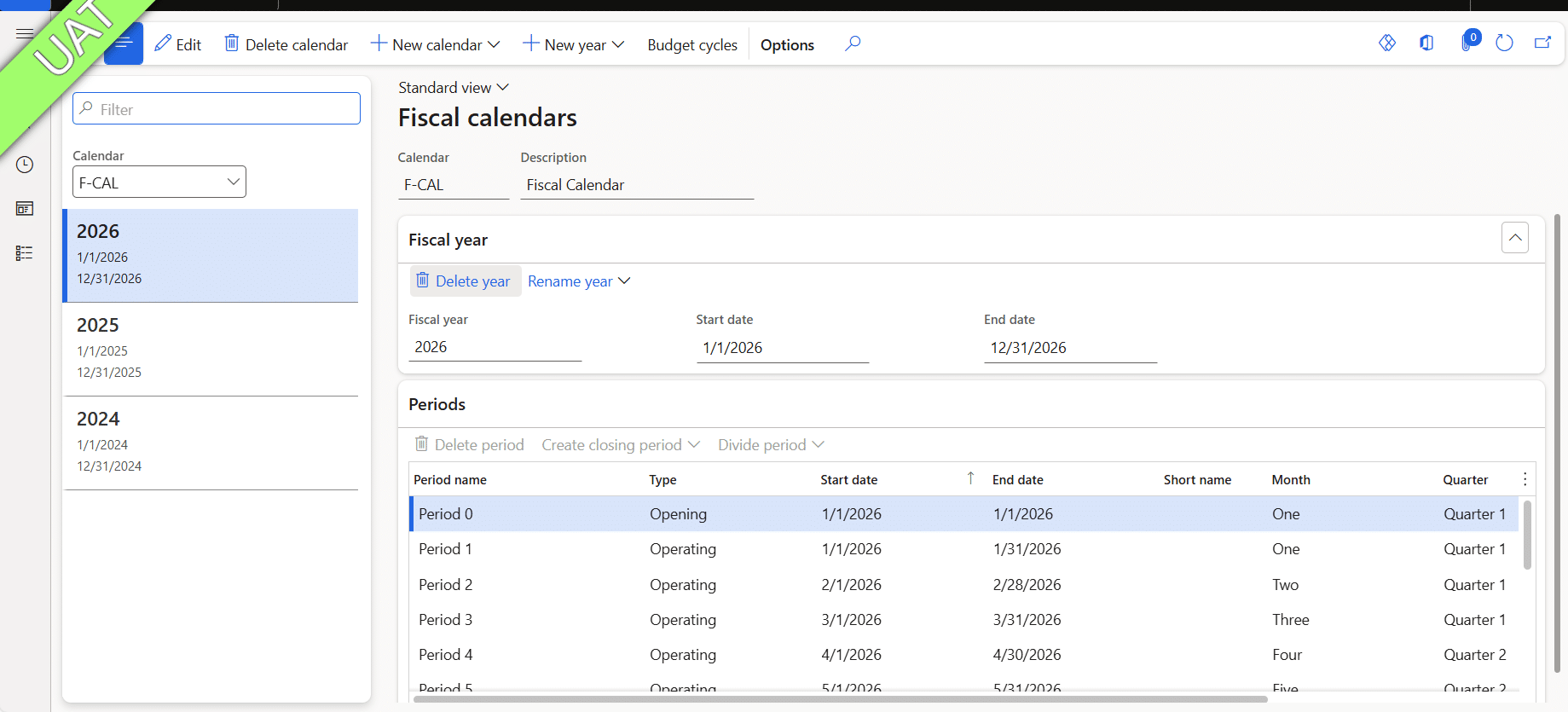
Step 3: Configure the ledger calendar for the new fiscal year
The next fiscal year must exist before the year-end close is run. Otherwise, the beginning balances can’t be created in the opening period.
Step 4: Set fiscal year status to permanently closed [No]
This option is used to set the fiscal year to a permanently closed status, this option careful to be used, because periods that have a permanently closed status it cannot be reopened, So, for this option best practices are recommended that should be set to “No”.
Step 5: Set up the year-end close template [Optional]
The template can be defined on the Year-end close template setup page (General ledger > Ledger setup > Year-end close template setup), or accessed from the year-end close process.
Read more: How to run General Ledger Foreign Currency Revaluation in D365 Finance and Operations
Step 6: Account for automatic transactions
Accounts for automatic transactions are used to define the default main account that is used for each posting type in the system. While doing setups for year-end close, you are required to configure year-end results with the [retained earnings] account to move the balance of accounts of the Profit-and-loss type into the main account that is selected for the year-end result.
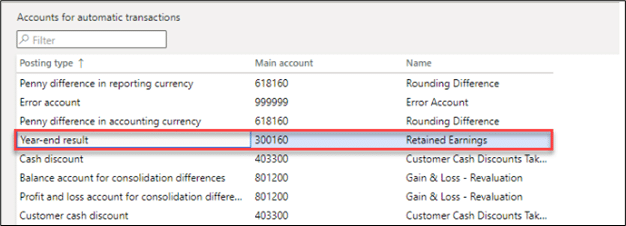
General Ledger Module > Year End Close [Form]
After completing the above setups, you can run the year-end close process in your Microsoft Dynamics D365 system.
Accelerate growth at an unprecedented pace
Discover how Confiz can help you take control of your daily operations, increasing growth and revenue.
Book a Free ConsultationWhat to do before the final close: Use closing period adjustments
Sometimes, organizations need to make final adjustments before completing the year-end closing process. Dynamics 365 Finance provides a feature called Closing Period Adjustments, which allows accountants to post adjustment entries in a dedicated closing period without impacting operational reporting.
Navigation: General Ledger → Periodic Tasks → Closing Period Adjustments
Year-end closing in Dynamics 365 Finance doesn’t have to be overwhelming. With proper preparation, configuration, and validation, you can ensure a smooth transition into the new fiscal year.
During the year-end close, the D365 Finance and Operations ‘Year-end close’ functionality calculates the results for the old fiscal year and transfers balances to the new year. This process is standard for every company using D365FO.
Before running the year-end close, you can use Closing Period Adjustments to post any final adjustments. These adjustments are recorded in the designated closing period. In this article, I demonstrate how to prepare and use a closing sheet in the Closing Period Adjustments form.
Further readings: The role of financial tags and default rules in Dynamics 365 Finance
For example, in the Closing Period Adjustments form, you can create a new line to prepare a closing sheet—my example is for the year 2025. 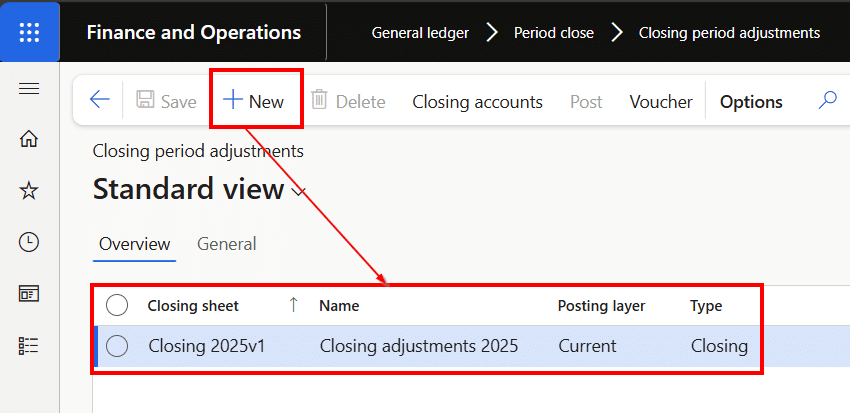
On the tab ‘General’, I define the posting date and make sure the postings will be made in the period type ‘Closing’:
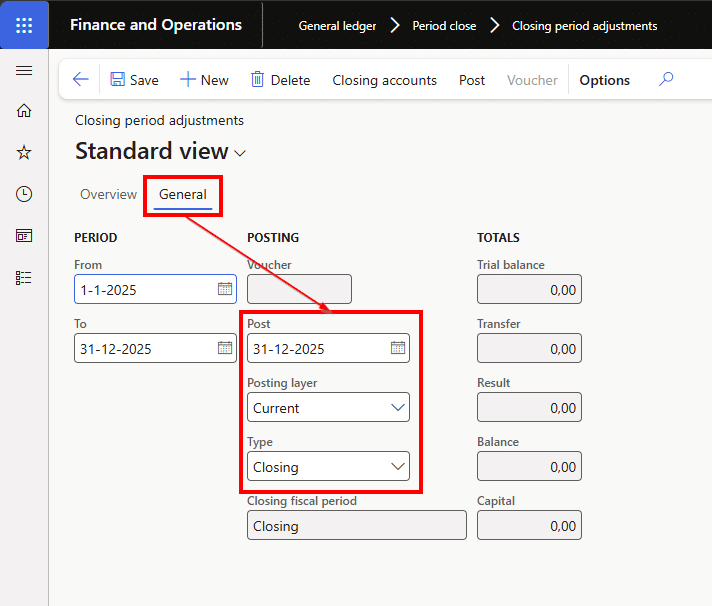
When finished at the top of the form I can select the ‘Closing accounts’ option to open the form for the current values on the main accounts and make the needed adjustments.
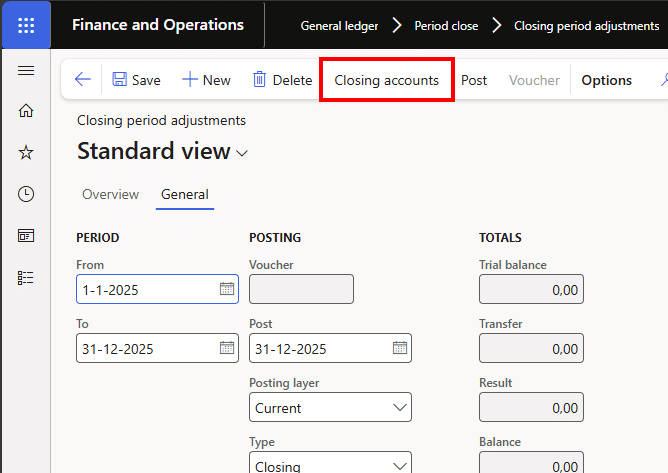
When you open the closing sheet for the first time, the form appears empty. You can use the ‘Load balances’ option to retrieve the current main account values, which can then be used to post your adjustments.
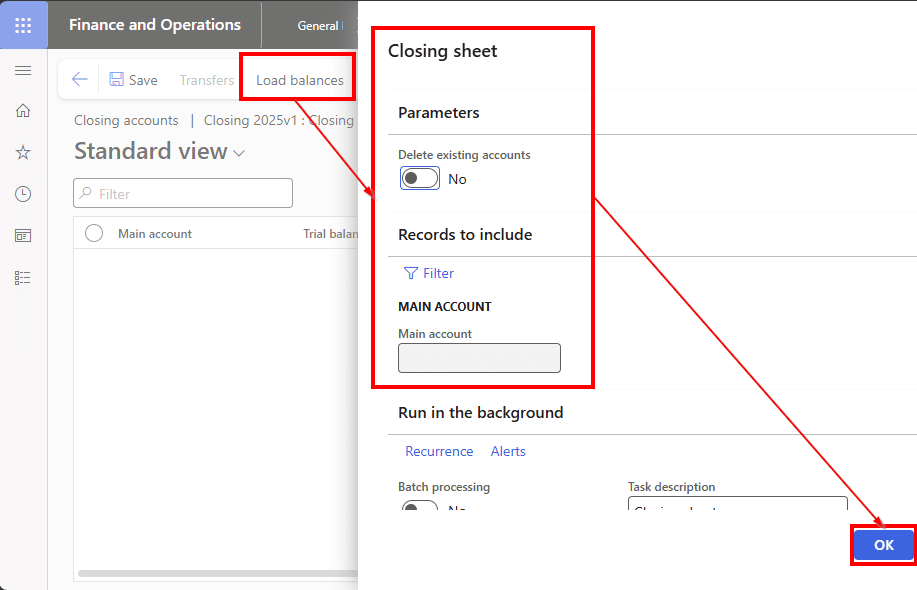
Loading these balances can take some time:
When finished the current balances are presented: 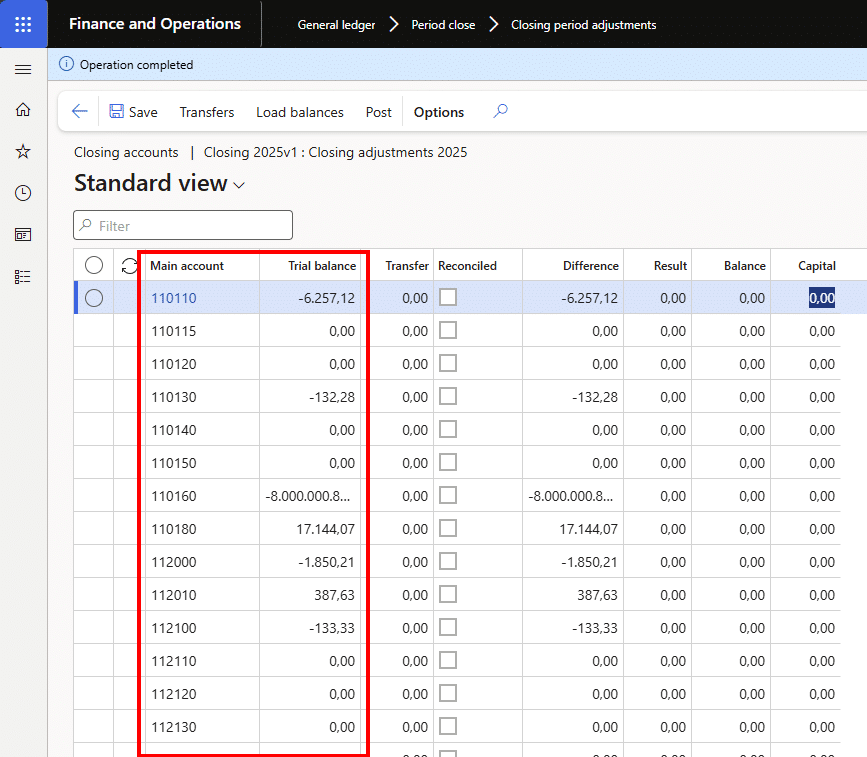
When you want to adjust a value on a main account, you can select the line, and at the top of the form, you can click on ‘Transfers’:
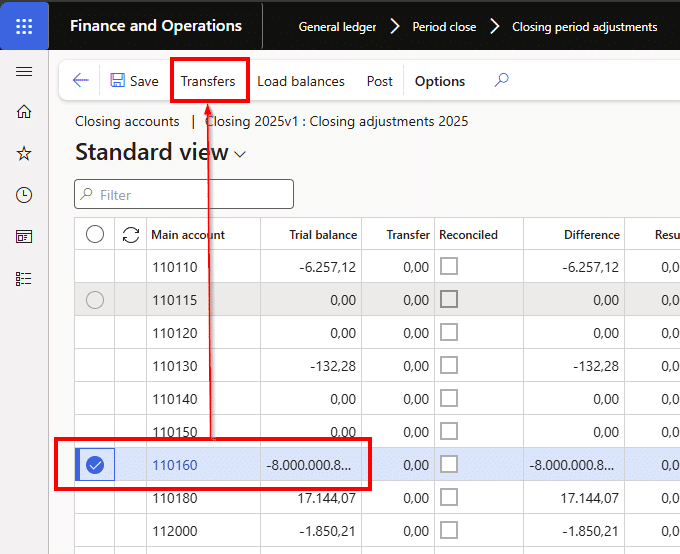
You can now enter one or more lines for each main account, and for each line, select the corresponding offset account. If needed, you can also specify financial dimension values for the transfer.
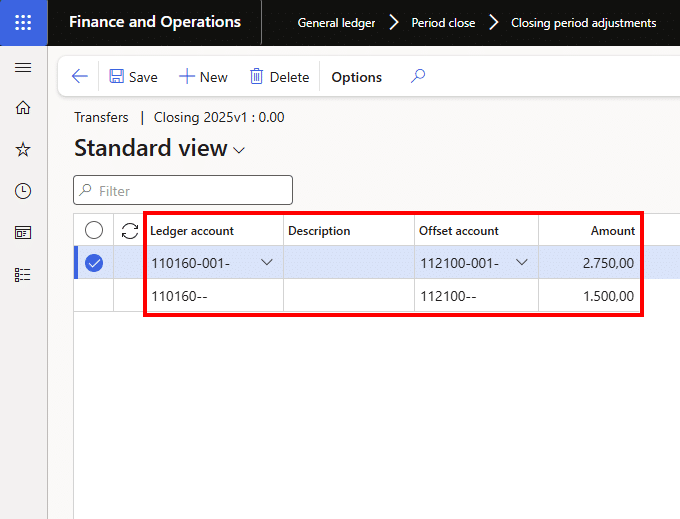
When these transfer lines are entered, and you return to the closing sheet, you will see the value of the created lines in the ‘Transfer’ column.
Now I can click on ‘Post’ to post these adjustments. When the closing sheet is posted, the balances are taken into the General Ledger. What you can see now is that in the standard view of the trial balances, you will not see these changes:
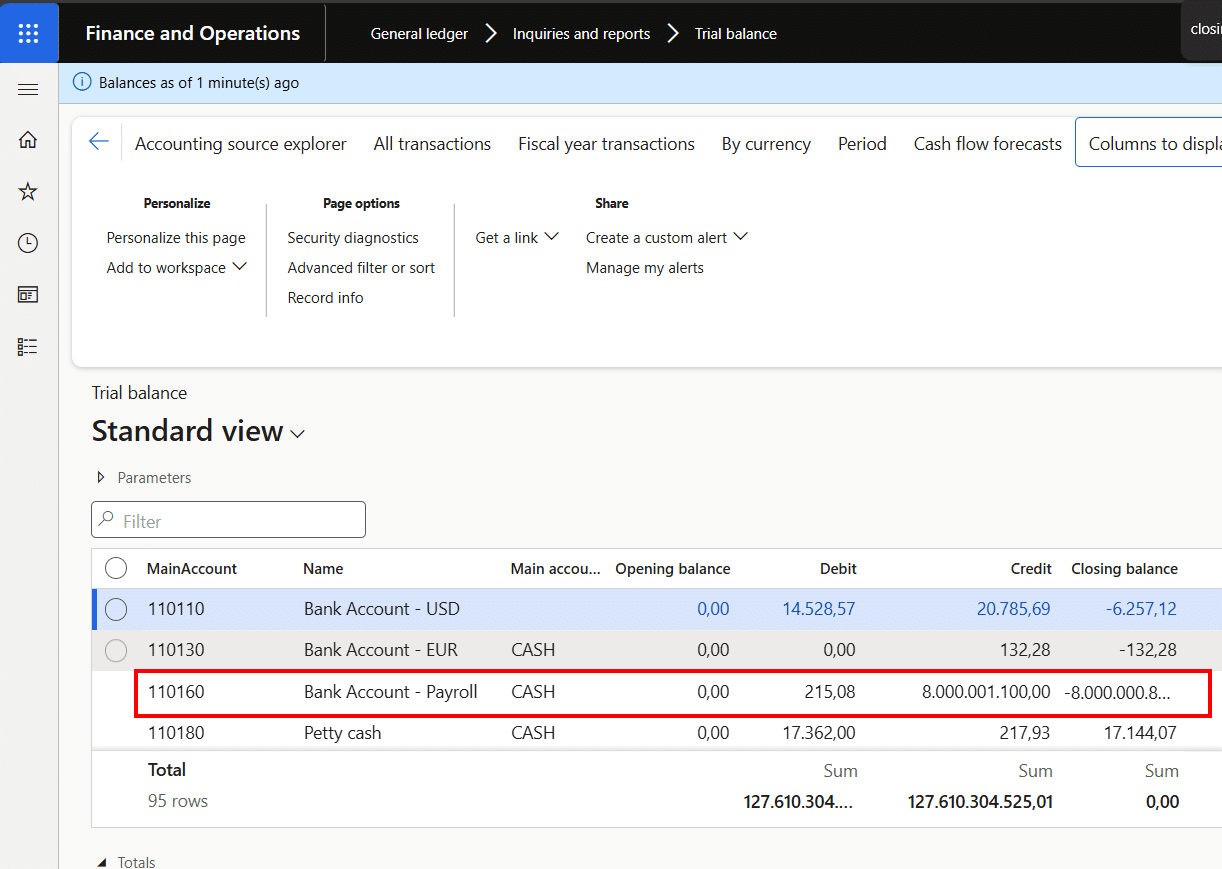
To see these adjustment values in the trial balance, select the ‘Columns to display’ option and enable the ‘Include closing period adjustments in balances’ option:
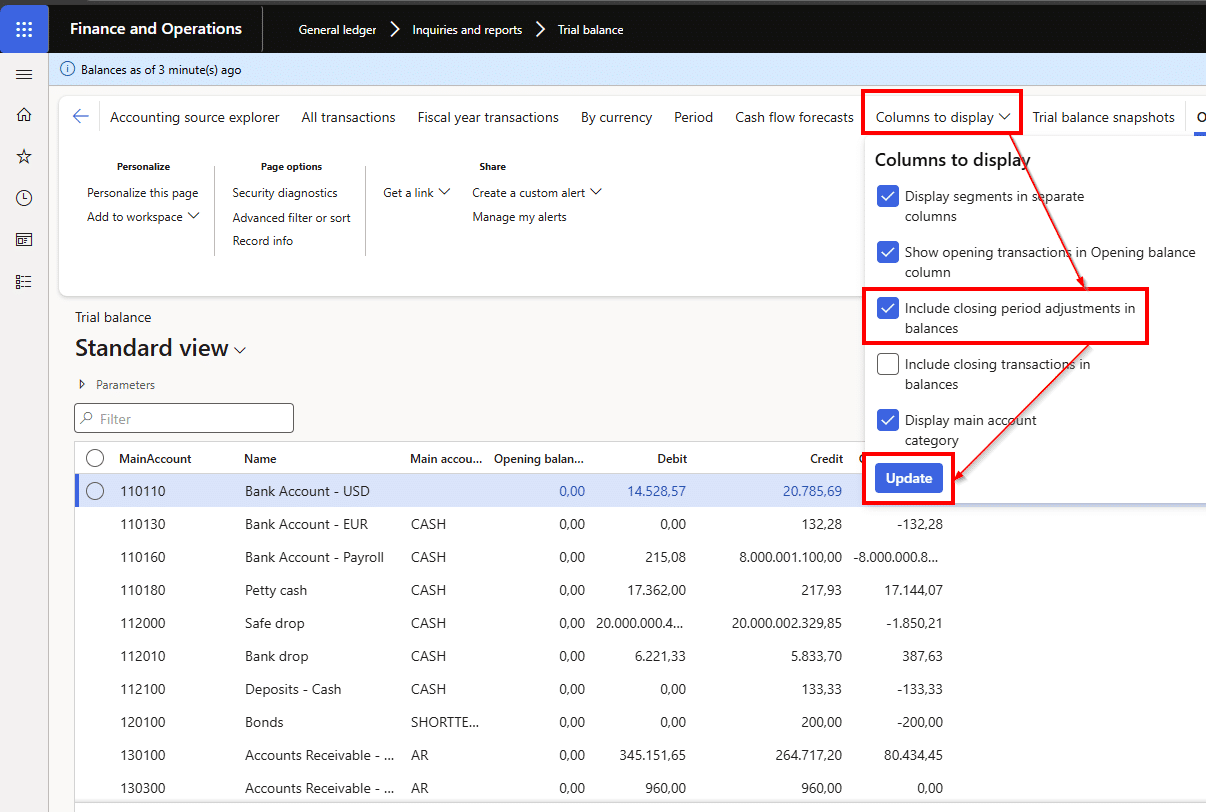
Now this column will be added to the trial balance and taken into the calculation of the closing balance:
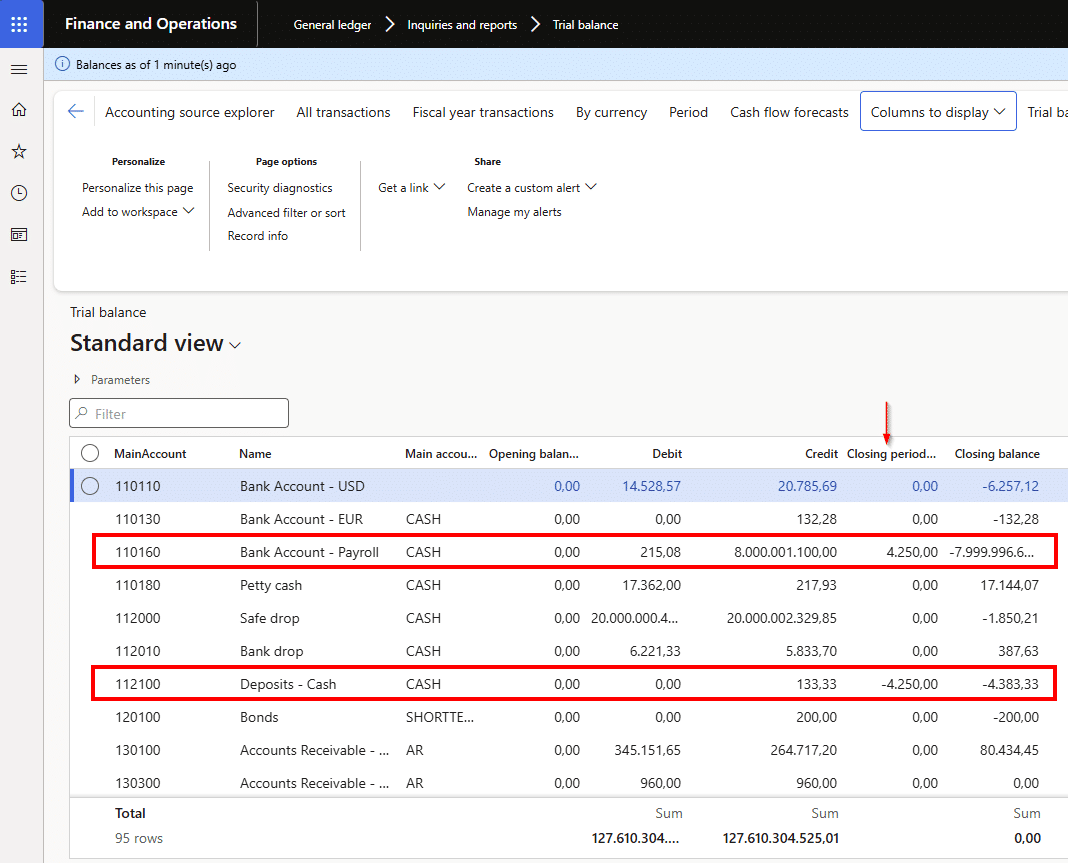
So what you see is that these closing transactions are excluded from the operational reporting but included in the year-end balances.
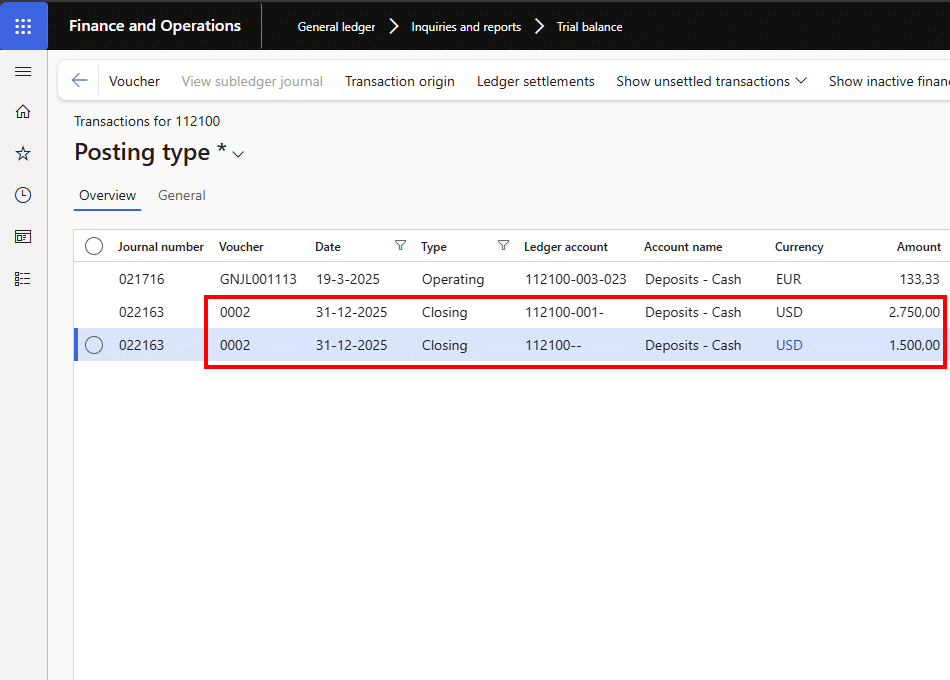
In the voucher transactions, you will see these transactions being posted on 31-12-2025 in the period type ‘Closing’:
What to review after the process finishes?
When the year-end close is complete, the beginning balances for the new fiscal year are created. In your example, once the 2025 close finishes, the beginning balances for 2026 are generated. Those balances are based on the prior year’s operational transactions, plus the closing-period adjustments posted before the close is finalized.
That is the right place in the article to remind readers what success looks like:
- Opening balances are created in the new year
- Profit and loss balances have been closed properly
- Retained earnings have received the year-end result
- Closing-period adjustments are reflected where expected
- Trial balance and voucher review confirm the outcome
Which option is best?
If the goal is to finalize the year and create opening balances, run the year-end close. If the goal is to post final accounting changes before the books are finalized, use Closing Period Adjustments first, then run or rerun the year-end close.
In case year-end has already been run and new adjustments are posted afterward, use the Delete existing year-end entries when re-closing the year, setting carefully based on whether you want to replace the earlier result or carry forward only the incremental change.
Conclusion
Year-end closing in Dynamics 365 Finance is a critical process that requires the right setup, accurate adjustments, and careful validation. When fiscal year close settings, retained earnings, closing entries, and opening balances are managed correctly, organizations can move into the new financial year with greater accuracy and less disruption.
As a trusted Dynamics 365 implementation partner, Confiz helps businesses streamline year-end close, optimize financial configurations, and improve overall finance operations. For support with Dynamics 365 Finance setup, year-end close configuration, or financial process optimization, contact marketing@confiz.com.