If your warehouse users find mobile screens unclear, you can improve the experience by updating the text they see in the warehouse app. In customizing mobile device labels in D365 F&O, the practical goal is simple: make step titles and instructions match your warehouse language, reduce confusion, and help workers move through tasks with less training.
This is a small configuration change, but it can have a real impact on speed, accuracy, and user adoption across warehouse processes.
Why clear mobile text matters more than most teams think?
Warehouse mobility is built for fast execution. Workers are scanning, confirming, moving, picking, packing, and closing work under time pressure. In that kind of environment, vague or overly generic prompts slow people down.
A label that makes sense to a consultant during setup may not make sense to the person using the device on the floor. That gap is where friction starts.
When you improve screen text, you are not changing the business logic of the flow. You are improving the way the flow is understood. That matters because the Warehouse Management mobile app is designed around step-based task execution, and every step guides the worker on what to do next. Microsoft’s current guidance for the Warehouse Management mobile app explains that each task flow step has a step ID, a title, an icon, and an instruction, and that these features apply to the newer Warehouse Management mobile app, not the deprecated legacy warehouse app.
What does this configuration control?
In practical terms, this setup lets you control the text shown during warehouse task flows. That includes short prompts at the top of the screen and longer instructions that help the worker understand what action is expected. Microsoft describes step titles as the short text shown prominently at the top of a screen, while step instructions provide longer guidance in a pop-up dialog. Microsoft also advises keeping step titles short so they do not get cut off on the device screen.
That is why this feature is useful in real warehouse environments. You can make the mobile interface speak the same language your team already uses.
Where does this setup fit in the warehouse app framework?
The warehouse app is driven by mobile device menu items and step-based flows. Microsoft’s documentation explains that warehouse workers use configured menu items in the Warehouse Management mobile app to perform work such as picking, receiving, container processing, and other warehouse tasks.
That means the text the worker sees is not random interface text. It is tied to specific workflow steps. A single process can contain several steps, and each step can present its own title and instructions. In more advanced scenarios, Microsoft also supports menu-specific overrides, meaning the same underlying step can behave differently depending on the menu item used. The Mobile device steps page is also where Microsoft adds step-specific configurations, such as detours and menu-item-specific overrides.
This is why warehouse mobile app step instructions and Dynamics 365 warehouse mobile app customization are more than cosmetic topics. They sit directly inside the guided execution model of warehouse work.
Read more: Driving operational excellence with Microsoft Dynamics 365 Warehouse Management Solution
When is label customization worth doing?
Not every environment needs widespread label changes. But in some cases, this becomes one of the easiest high-value improvements you can make.
It is usually worth doing when:
- Your warehouse uses internal terms that are different from standard wording
- Users hesitate at specific screens or ask supervisors what a prompt means
- A process step is technically correct but not operationally clear
- You support multilingual users and need better wording by language
- You want to improve onboarding without changing the actual workflow
This aligns with Microsoft’s stated benefits for custom step text: better worker ramp-up and instructions that match your own warehouse process terminology.
In that sense, Dynamics 365 Supply Chain Management warehouse app text customization is not just a UI preference. It supports usability, training, and adoption.
Take control of your business operations
Discover how Confiz services can simplify your complex workflows and improve decision-making.
Get a Free QuoteWhat to have ready before you start?
The technical setup should already be in place before you refine labels. That includes a functioning warehouse mobility setup and working menu items for the related process.
At a practical level, make sure:
- Warehouse Management is configured for the process you want to test
- The mobile device menu item already exists and is assigned properly
- The worker can sign in and run the relevant task flow
- You know exactly which process step you want to improve
- You have a test environment or at least a safe test window for validation
Microsoft’s warehouse mobility setup documentation confirms that menu items are the basis for how workers perform warehouse work in the app, and the worker and device setup must also be aligned for use in the environment.
D365 F&O warehouse management administrators should pause before editing text blindly. A label change is easy, but the right label change depends on the exact flow and menu item.
Step-by-step guide to changing labels
If you want to make the warehouse app easier for users, this is where the setup begins. In D365 F&O, label changes for warehouse mobile flows are managed from the mobile device steps setup page.
Navigation path:
Warehouse management > Setup > Mobile device > Mobile device steps
This is the area where you can review available mobile steps, open their configurations, and update the text shown to warehouse workers during specific process flows.
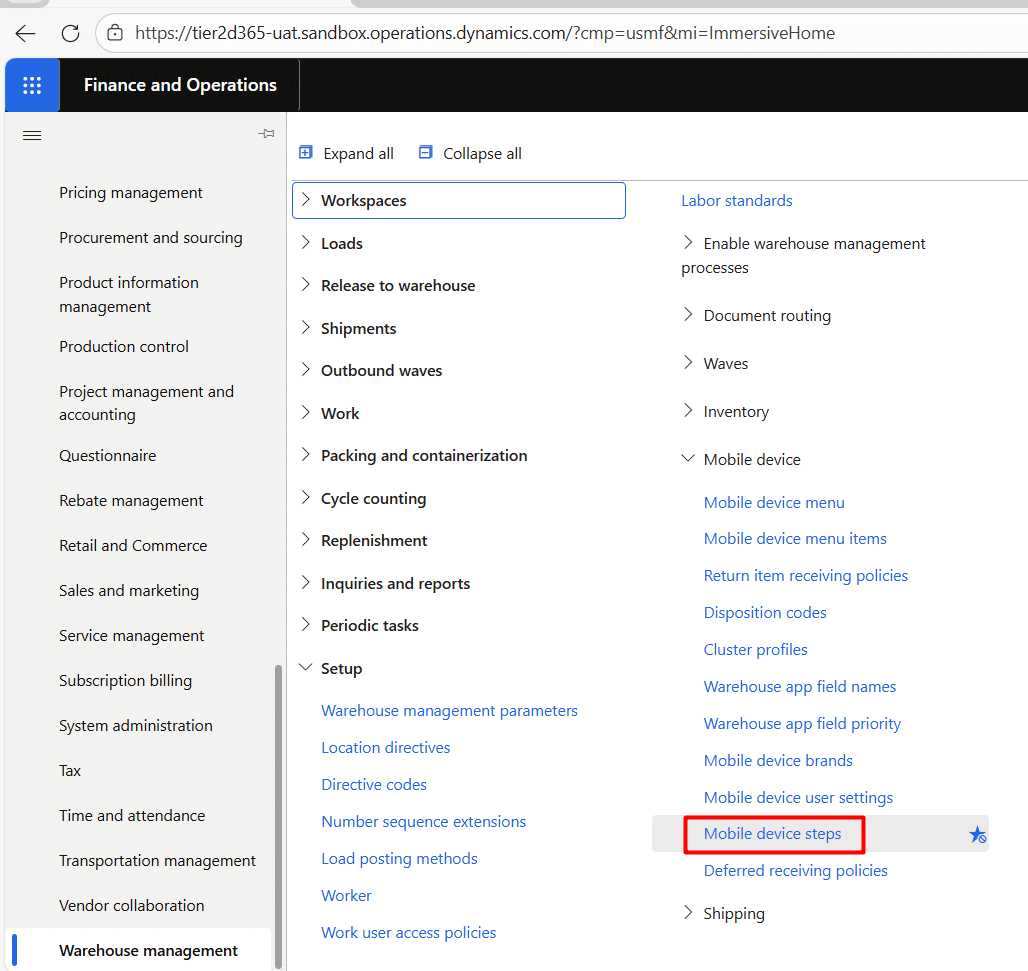
1. Generate the default setup first
When you open the mobile device steps page for the first time, the form may appear blank. This is expected.
Before you can edit any label, you need to generate the default setup. This creates the standard step records used across warehouse mobile flows and loads all available step configurations into the form.
What does this step:
- Creates the default mobile step records
- Populates all possible steps available in the system
- Prepares the page for further label-level changes
This step does not change your warehouse process. It only makes the available mobile step definitions visible so they can be reviewed and updated.
2. Identify the workflow step you want to change
Once the default setup has been generated, the next task is to find the exact label that needs to be updated.
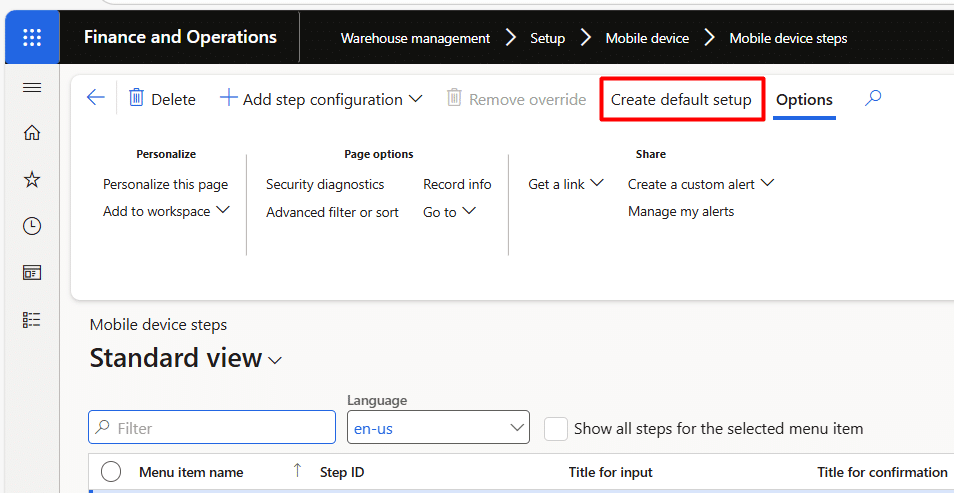
Go through the list on the mobile device steps page and use the available filters to narrow down the results. Since this page can contain many steps across multiple warehouse flows, filtering is important to help you locate the correct record.
What to focus on here:
- The process or workflow you are updating
- The menu item where the label appears
- The current step text shown to the worker
- Whether the wording is unclear, too generic, or not aligned with your business terminology
This is an important step because label changes are step specific. If you open the wrong record, the change will apply to the wrong part of the process.
3. Open the correct step for customization
After locating the relevant record, select the step linked to the warehouse mobile device menu item where you want the text to change.
For example, if you are updating a label in a container-related process, filter for the relevant container step and confirm the current default text. In your case, the existing input title displayed to the warehouse worker is scan container to close.
This review helps confirm that you are editing the correct step before making any change.
What this step helps you confirm:
- The exact workflow affected
- The current default label being used
- The mobile step that controls the screen text
4. Open the Setup ID
Once you are on the correct step, click Setup ID.
This opens the translation and configuration details related to that mobile step. From here, you can access the text values assigned to the step for different languages.
Why this matters:
- Setup ID connects you to the label configuration for that step
- it gives access to language-specific text records
- it allows you to update the worker-facing wording without changing the process logic
5. Open the language record
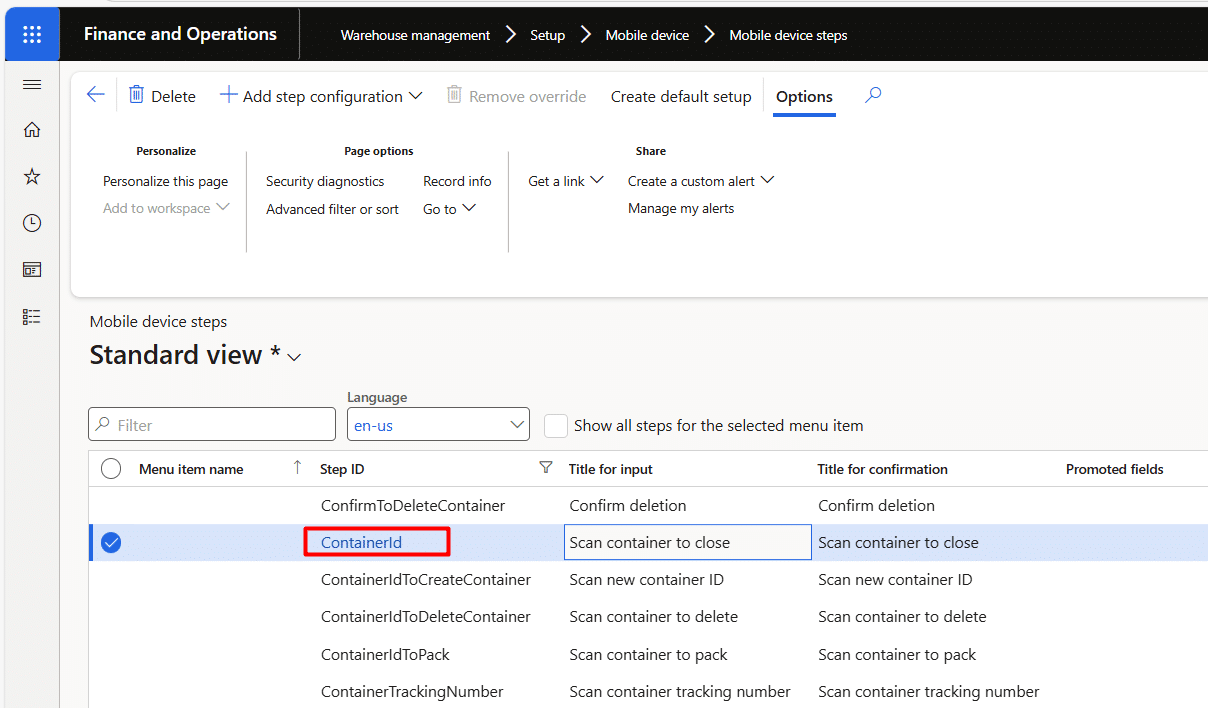
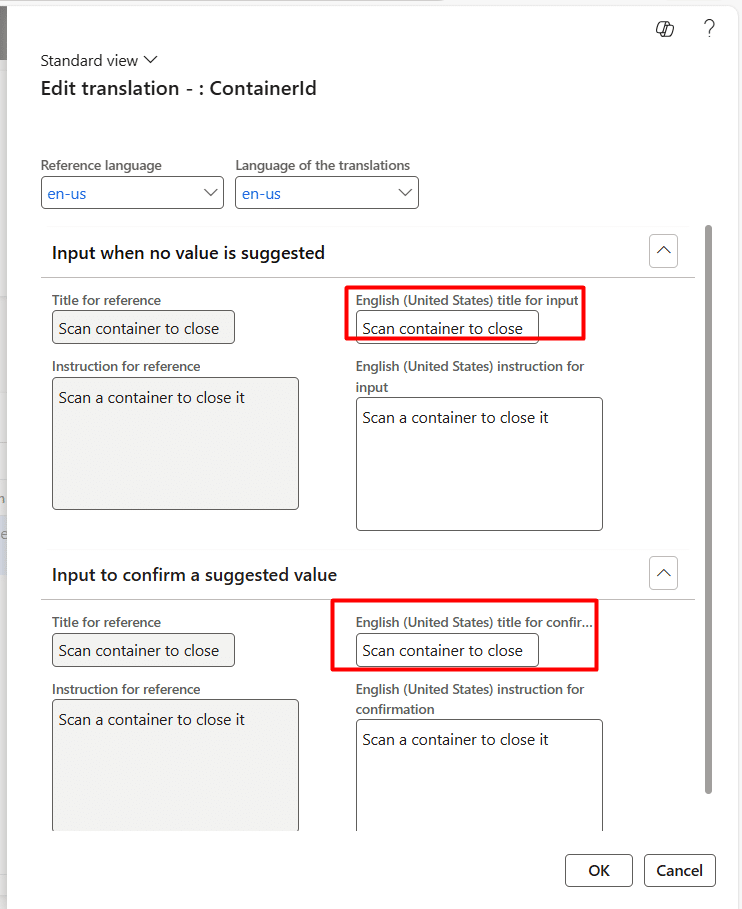
Inside the translated text section, find the language record you want to update. If you are working with standard English labels, locate EN-US and click the Language ID.
This opens the translation edit form where the current text is stored.
Key feature here:
- Language-specific customization lets you maintain different wording for different languages
- You are not limited to one version of the text across all users
- This is useful for multi-site or multilingual warehouse environments
6. Modify the required text fields
Now update the text in the relevant highlighted fields.
This is the point where you replace the default wording with clearer, shorter, or more aligned language for how your warehouse team works. The goal should be to make the instruction easier to understand without changing the task’s meaning.
When refining the label, keep the text practical and user-focused. Warehouse workers should be able to understand the prompt quickly while moving through the task.
Best practice for this step:
- Use short and clear wording
- Match the language your warehouse team already uses
- Avoid overly technical or unclear phrasing
- Make the action obvious to the user

7. Save the change and test it
After updating the text, save the record.
The next time a user reaches that step on the mobile device, the updated label will appear instead of the default one. There is no need for deployment or compilation.
Important features:
- Changes are immediate
- No code deployment is needed
- No compilation is required
- The updated text appears directly in the live user flow
Because the change takes effect immediately, testing is essential. Always validate the updated label in the mobile process before rolling it out more widely.
Accelerate growth at an unprecedented pace
Discover how Confiz can help you take control of your daily operations, increasing growth and revenue.
Book a Free ConsultationBest practices before updating mobile labels
1. Remember that changes go live right away
One of the biggest advantages of this setup is also something to be careful with. Once you save a label change, it becomes visible to warehouse users immediately. There is no deployment step in between, so even a small mistake can show up in a live process right away.
2. Test outside production whenever possible
The safest approach is to try label updates in a test environment first. That gives you a chance to review the wording, confirm the step, and make sure everything looks right before applying it in production. If testing outside production is not possible, make the update during off-hours and validate it before the warehouse team starts using that flow.
3. Keep language settings in mind
These labels can be maintained in multiple languages, which is useful if your warehouse team works in more than one language. This gives you the flexibility to show the correct wording based on the user’s language settings, rather than relying on a single generic label for everyone.
4. Know that each change applies only to that step
Label updates are tied to the specific step you are editing. Changing one prompt does not automatically replace the same wording across the entire warehouse app. That is helpful when you want more control, but it also means you need to review each step carefully if similar text appears in multiple flows.
5. Validate the full process, not just the text
After updating a label, do not stop at checking whether the new text appears. Walk through the full user flow and make sure the change works in context. Confirm that:
- The text fits properly on the mobile screen
- The wording is clear for the worker
- The update appears in the correct process step
- The instruction supports the next action without confusion
Conclusion
Customizing warehouse mobile labels in D365 F&O helps make mobile workflows clearer and easier for warehouse users to follow. Better step titles and instructions can reduce confusion, support faster task execution, and improve accuracy on the floor.
If you need help with Dynamics 365 warehouse configuration or process optimization, contact marketing@confiz.com.