In global procurement, costs rarely stop at the base price of goods. Freight, insurance, customs duties, and handling fees all contribute to the item’s true landed cost. Accurately capturing these costs is essential for financial transparency and operational control.
In the Accounts Payable (AP) module of D365 Finance & Operations, charge setup allows businesses to automate and allocate such costs directly against purchase orders. This ensures accurate cost visibility, improves financial reporting, and reduces the reliance on manual adjustments.
This blog walks through the importance of configuring charges, common challenges, and a practical example of setting up automatic charges in the Dynamics 365 Accounts Payable workflow.
The impact of missing or improper charge configuration in Accounts Payable
When charges are absent or incorrectly configured in the Accounts Payable module of Dynamics 365, organizations often face process inefficiencies and financial inconsistencies. Such gaps can lead to inaccurate cost allocations, reconciliation difficulties, and reduced visibility into true expense data. Over time, these issues compromise financial accuracy, weaken internal controls, and diminish the overall efficiency of the Accounts Payable workflow.
Here are some common challenges you might experience:
1. Hidden costs
Failure to systematically record additional costs (e.g., freight, duties) often leads to reliance on external tools, such as spreadsheets, resulting in inaccurate product costing and profitability analysis.
2. Manual and error-prone processes
Without predefined charge codes, manual entry of charges during invoice posting or PO confirmation increases errors, inconsistencies, and missed costs.
3. Challenges in cost allocation
Difficulty in determining whether to allocate charges proportionally (by quantity, value, or weight) or at the header level distorts item-level costing and financial accuracy.
4. Vendor oversight gaps
Inconsistent tracking of vendor-specific charges obscures cost patterns, hindering contract negotiations and compliance with agreed terms.
5. Complexity in multisite/warehouse operations
Misallocation of charges across multiple sites or warehouses creates reporting discrepancies and reconciliation challenges.
6. Audit and compliance risks
Missing or incorrectly allocated charges lead to General Ledger inaccuracies, impacting financial statements, budgeting, forecasting, and audit compliance.
7. Low user adoption
A limited understanding of Dynamics 365‘s charge functionality leads to underutilization, with teams resorting to manual workarounds rather than leveraging automated processes.
Take control of your business operations
Discover how Confiz services can simplify your complex workflows and improve decision-making.
Get a Free QuoteBenefits of setting up charges in Accounts Payable
Setting up charges in Accounts Payable is more than a configuration exercise; it directly impacts cost accuracy, financial control, and procurement efficiency. Well-defined charge codes ensure that all additional costs are consistently captured and properly reflected in financial reporting.
1. Accurate cost visibility
Captures the true land cost of goods by associating additional expenses (e.g., freight, insurance, duties) with specific line items or entire purchase orders (POs). This ensures precise product costing for pricing, profitability analysis, and margin management.
2. Automated and consistent allocation
Predefined charge codes automate charge application at the PO header or line level, reducing manual errors and ensuring consistent cost allocation across vendors, items, and warehouses.
3. Enhanced financial accuracy
Integrates additional costs into the General Ledger to support accurate financial reporting, budgeting, and compliance with auditing standards.
4. Improved vendor and contract management
Tracks charges linked to specific vendors, enabling better oversight of supplier agreements, cost trends, and contract compliance for effective negotiation and relationship management.
5. Informed cost control and decision-making
Offers flexibility to allocate charges at the line or header level, empowering procurement and finance teams to optimize sourcing, pricing, and logistics strategies.
6. Support for multi-site and multi-warehouse operations
Enables accurate charging to specific sites or warehouses, improving cost tracking and reporting for businesses with multiple locations.
How to set up Charges in Accounts Payable?
In Accounts Payable, charges are configured under the Charges code tab in D365 Finance & Operations. These charges represent additional costs such as freight, insurance, duties, or other fees and can be applied based on:
- Vendor – Costs linked to specific suppliers
- Item – Costs tied to individual items or item groups
- Site/Warehouse – Costs allocated to particular locations for accurate landed cost reporting
Charges can be applied at two levels within a purchase order:
- Line level – Costs are distributed to individual PO lines, reflecting item-specific expenses.
- Header level – Costs are applied to the overall PO and are suitable for shared or general expenses.
This flexibility allows businesses to capture both itemized and overall procurement costs, ensuring more accurate financial reporting and better control within the Dynamics 365 Accounts Payable workflow.
Use case: Setting Automatic charges in purchase orders
One of the most practical features in Dynamics 365 Finance & Operations is the ability to configure automatic charges. This setup applies charges automatically when a purchase order (PO) is created, based on predefined rules.
Configuration path:
Accounts Payable > Charges > Automatic Charges
Step 1: Configure vendor-specific automatic charges
If the vendor is defined under Account Code: Table, and the item is set to All, with Mode of Delivery also set to All, then the defined charges (e.g., Freight or Insurance) will automatically apply to all POs created for that specific vendor.
Once the configuration is saved, the system will automatically calculate and include the defined charges when the Purchase Order is created, ensuring consistency and reducing manual entry.
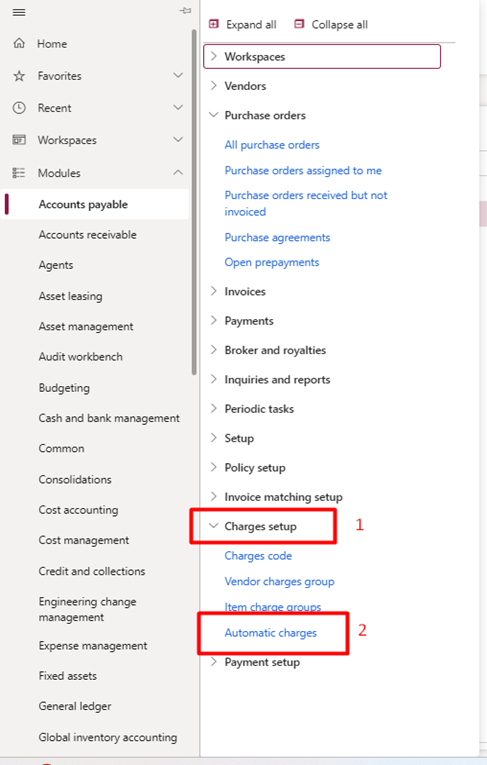
Step 2: Access the automatic charges setup
Accounts Payable > Charges > Automatic charges
Then, click on Automatic charges, and a new setup table will open.
Accelerate growth at an unprecedented pace
Discover how Confiz can help you take control of your daily operations, increasing growth and revenue.
Book a Free ConsultationStep 3: Define charge parameters
- Level – Select whether charges will apply at the header level (overall PO) or the line level (individual PO lines).
- Account code – Choose how charges are applied to vendors:
- All – Charges apply to all vendors in the system.
- Table – Charges apply to a specific vendor.
- Group – Charges apply to a vendor group (or item group/mode of delivery group).
- Relation – Based on the selection above, define the actual relation:
- If Table, you select a specific vendor account.
- If Group, you choose a vendor group.
- Item code – Define whether charges apply to:
- All items
- Table (specific item)
- Group (item group)
- Mode of delivery – Define whether charges depend on a specific delivery mode or apply to all.
- Charges tab – In this section, add the actual charge codes (such as Freight, Insurance, Duty, etc.) and assign either a fixed value or a percentage.
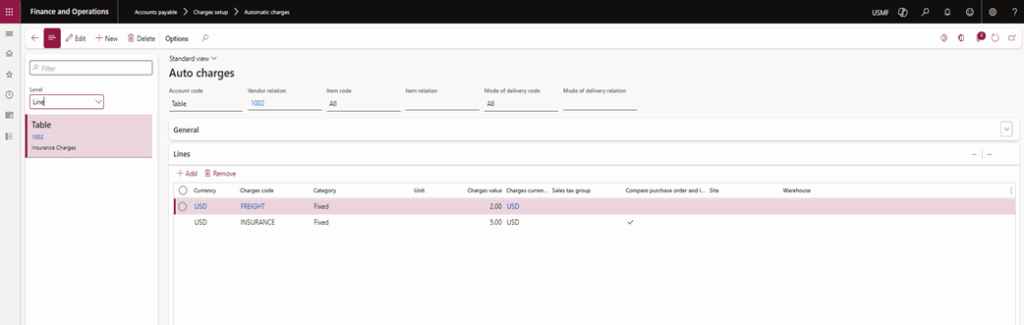
As shown in the screenshot above, the Level option determines where charges are applied – either at the Header or Line level of the Purchase Order.
Step 4: Select level and account code
Once the level is selected, the account code field becomes available. In this field, there are three options:
- All – The charges apply to all vendors in the system.
- Table – The charges apply to a specific vendor.
- Group – Charges are applied based on predefined groups (such as vendor group, item group, or mode of delivery).
In our case, we selected Table, which means the charges will apply to a specific vendor. At the same time, the charges were set for all items and delivery modes. This ensures that the defined charges are applied only to the selected vendor across all items and delivery modes.
Step 5: Add charge codes and values
Next, in the Charges tab, add charge types such as Insurance and Freight and specify their values. Since the charges were configured at the PO header level, they will be applied directly when creating a purchase order.
After completing these configurations, proceed to create the Purchase Order, where the system automatically applies the defined charges according to the setup.

Step 6: Validate charges on the purchase order
- Create a purchase order and add an item.
- Confirm the Purchase Order.
- Navigate to the financials tab on the PO.
- Open the charges tab, then click Maintain Charges.
- In the maintenance charges window, the system automatically displays the charge codes (such as Freight, Insurance, or Duty) that were configured earlier for the selected vendor/item/mode of delivery.
This confirms that the automatic charge setup is working correctly and that the charges are applied against the defined vendor parameters without manual intervention.

Conclusion
Setting charges in Dynamics Accounts Payable is essential for capturing the true landed cost of goods, improving cost allocation, and ensuring financial accuracy. With automatic charges in Dynamics 365 Accounts Payable workflows, organizations can reduce manual errors, standardize processes, and strengthen vendor management.
At Confiz, we help enterprises configure and optimize their Dynamics 365 Finance & Operations Accounts Payable processes—ensuring accurate reporting, streamlined procurement, and long-term compliance. If you’re looking to enhance your financial workflows with proper charge setup, our experts are here to guide you. Contact us at marketing@confiz.com to get started.