
As organizations embed Microsoft Copilot Studio into their Dynamics 365 Finance & Operations (D365 F&O) processes, one thing becomes immediately clear: the data Copilot retrieves is rarely in a business-friendly format. Responses coming from Power Automate or F&O entities typically arrive as raw JSON — great for machines, not for humans.
JSON is designed for system-to-system communication, but business users expect something different:
Clear, readable, and structured information that they can understand briefly.
To bridge that gap, Copilot responses need to be formatted before they’re displayed to the user.
In this guide, you’ll learn how to transform JSON output from Dynamics 365 F&O into clean, user-friendly responses inside Copilot Studio using:
- Readable text messages for quick summaries
- Adaptive Cards for structured, polished, and visually engaging layouts
By applying these approaches, your Copilot interactions become more intuitive, conversational, and aligned with the real expectations of business users.
Why does formatting JSON matter in Copilot Studio?
When Copilot or a Power Automate flow fetches D365 F&O records — such as Customers, Vendors, Sales Orders, or Projects — the response often looks like this:
[
{“Customer Name”: “Active Transport Inc.”, “Customer Account”: “US_SI_0002”, “Company”: “ussi”},
{“Customer Name”: “Alpine Ski House”, “Customer Account”: “US_SI_0003”, “Company”: “ussi”},
{“Customer Name”: “Brakes and Gears”, “Customer Account”: “US_SI_0062”, “Company”: “ussi”}
]
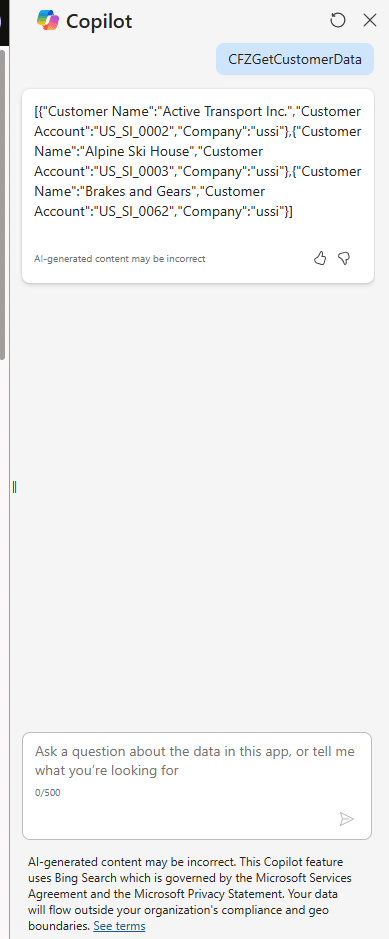
This format is great for automation, but difficult for end users to interpret in a chat interface.
By formatting the data before displaying it, you can turn this raw JSON into clear, structured information that improves usability and reduces confusion.
Method 1: Displaying customer data as readable text messages
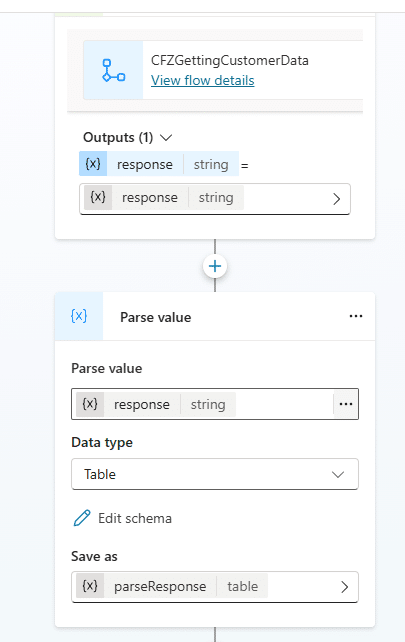
Step 1: Parse the JSON response in Copilot Studio
To work with JSON dynamically, you first need to parse it.
How to parse JSON:
- Click + → Variable Management → Parse value.
- Select the variable containing the Power Automate response.
- Set the data type from sample data.
- Click Get schema from sample JSON → paste the sample payload → confirm.
- Save the parsed output as a new variable, e.g., parseResponse.
Take control of your business operations
Discover how Confiz services can simplify your complex workflows and improve decision-making.
Get a Free QuoteWhy parse JSON?
Parsing converts the raw JSON string into a structured object that Copilot Studio can loop through and use dynamically.

- Save it as a new variable, for example, parseResponse.
Step 2: Loop through the parsed JSON
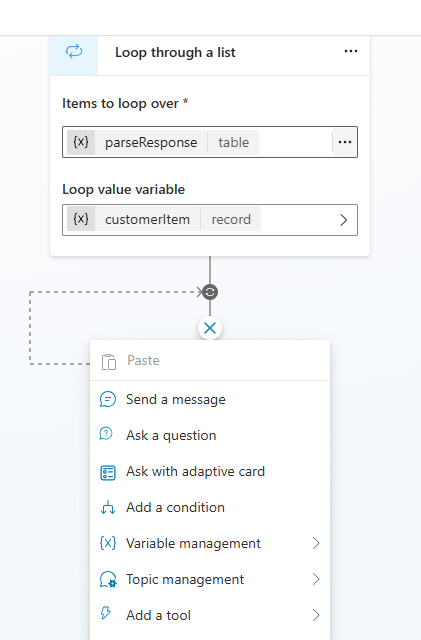
- Click + → Variable Management → List management → Loop through list.
- Select parseResponse in Items to loop over.
- Rename loop value variable to customerItem.
- The loop variable, customerItem, represents each customer record during iteration.
Step 3: Display customer details in a message node
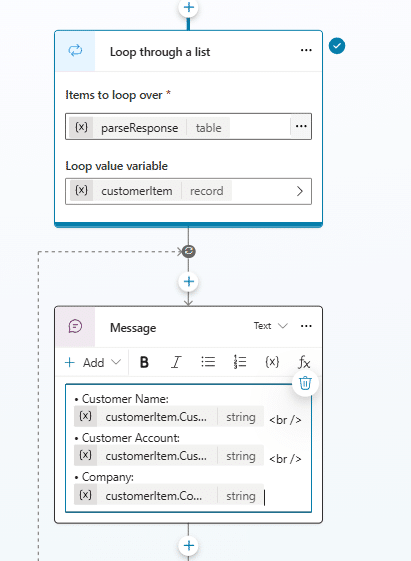
Inside the loop, add a Send a Message node and enter the following content:
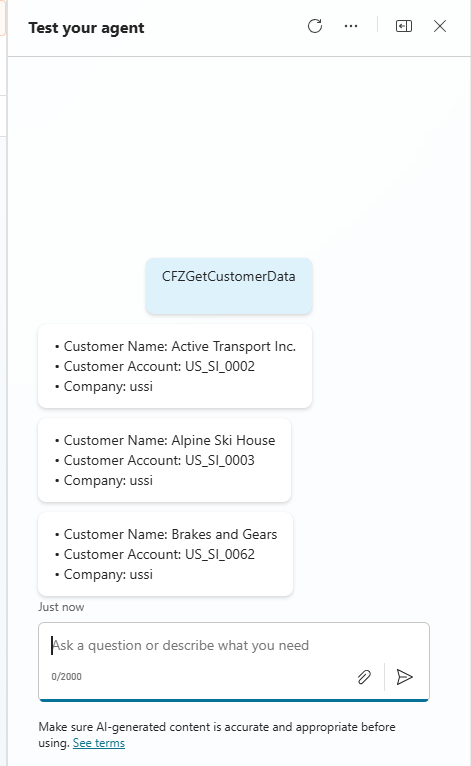
- Customer Name: {Topic.customerItem.’Customer Name’} <br />
- Customer Account: {Topic.customerItem.’Customer Account’} <br />
- Company: {Topic.customerItem.Company}
What this does
- The message runs inside the loop, so it displays details for each customer record.
- Each line shows a label and its dynamic value.
- <br /> tag ensures each field appears on a separate line in the message.
- Variables like {Topic.customerItem.’Customer Name’} dynamically displays customer data.
- Save the topic and test it by entering the trigger phrase CFZGetCustomerData in Test your agent sidecar, as this topic is triggered whenever this phrase is used.
Method 2: Displaying customer data using Adaptive Cards
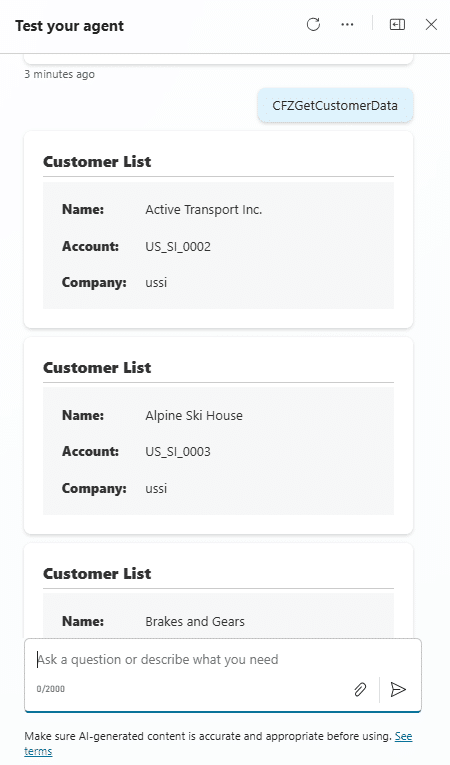
To display the same data in a more structured and visually clear way, we will use an Adaptive Card. For this, we will:
Step 1: Parse the JSON and add a loop
- Parse the response and add a loop (same as above).
Step 2: Insert an Adaptive Card
Inside the loop:
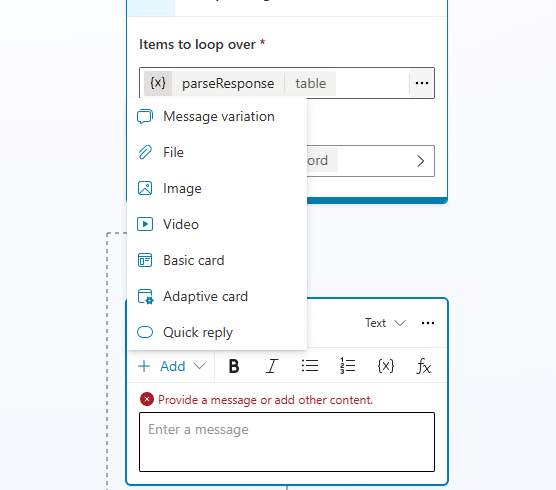
- Add a Send a message node
- Click + Add → Adaptive Card
- Design the card layout using fields such as:
- Text blocks
- Columns
- Key-value pairs:
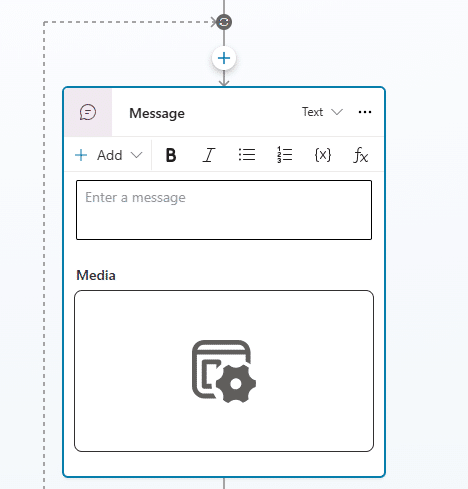
- Sample Adaptive Card JSON (simplified):
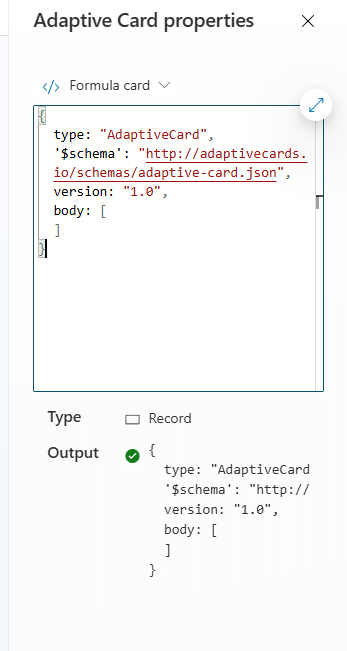
Use the following JSON code to define the Adaptive Card layout
{
type: “AdaptiveCard”,
schema: “http://adaptivecards.io/schemas/adaptive-card.json”,
version: “1.4”,
body: [
{
type: “TextBlock”,
text: “**Customer List**”,
weight: “Bolder”,
size: “Medium”,
wrap: true,
spacing: “Medium”
},
{
type: “Container”,
style: “emphasis”,
spacing: “Small”,
separator: true,
items: [
{
type: “ColumnSet”,
columns: [
{
type: “Column”,
width: “auto”,
items: [
{ type: “TextBlock”, text: “**Name:**”, weight: “Bolder”, wrap: true },
{ type: “TextBlock”, text: “**Account:**”, weight: “Bolder”, wrap: true },
{ type: “TextBlock”, text: “**Company:**”, weight: “Bolder”, wrap: true }
]
},
{
type: “Column”,
width: “stretch”,
items: [
{ type: “TextBlock”, text: Topic.customerItem.’Customer Name’, wrap: true },
{ type: “TextBlock”, text: Topic.customerItem.’Customer Account’, wrap: true },
{ type: “TextBlock”, text: Topic.customerItem.Company, wrap: true }
]
}
]
}
]
}
]
}
What this does
- Displays customer data in a clean, card-style layout.
- The title “Customer List” appears at the top.
- Data is shown in two columns, field labels on the left, values on the right.
- Each row shows Name, Account, and Company from the current loop item.
- The ColumnSet organizes labels and values side by side, the TextBlock weight makes labels bold, and the Container style emphasis visually separates the data.
Save the topic and test it by entering the trigger phrase CFZGetCustomerData in Test your agent sidecar.
Accelerate growth at an unprecedented pace
Discover how Confiz can help you take control of your daily operations, increasing growth and revenue.
Book a Free ConsultationBest practices for formatting D365 F&O data in Copilot Studio
To deliver consistent, readable, and reliable responses in Copilot Studio, keep the following practices in mind:
Read more: An implementation guide on retrieving Dynamics 365 Finance and Operations data with Copilot Studio
1. Use clear, business-friendly labels
Avoid technical field names. Opt for simple terminology such as Customer Name, Account Number, or Company to make responses easy to understand.
2. Use text messages for quick, lightweight summaries
Text-based messages are ideal for simple lookups or scenarios where the user only needs a brief snapshot of the data.
3. Use Adaptive Cards when structure and clarity matter
Adaptive Cards are better suited for displaying data that requires visual hierarchy, such as:
- Detailed customer profiles
- Order or invoice summaries
- Inventory or product details
- Any multi-field or multi-line information
4. Test your loops with different dataset sizes
Ensure the logic handles a single record, multiple records, or even an empty response gracefully. This avoids formatting issues during real user interactions.
5. Keep your JSON schema up to date
If fields in D365 F&O entities change, update your schema accordingly. This helps prevent errors, missing fields, and unexpected behavior during parsing.
Conclusion
Formatting JSON data for Microsoft Copilot Studio in Dynamics 365 Finance & Operations transforms raw, technical responses into clear, business-ready insights. By converting unstructured JSON into readable messages or Adaptive Cards, organizations can improve clarity, enhance user experience, and ensure employees receive information in a format that supports faster decision-making. These formatting techniques create smoother interactions, reduce confusion, and make Copilot responses more intuitive for business users.
At Confiz, we help enterprises get the most out of their Dynamics 365 and Copilot investments with scalable, secure, and user-centric implementations. From Copilot Studio setup to advanced response formatting and automation, our experts ensure your AI-driven experiences are seamless, accurate, and aligned with real business needs.
Looking to optimize how Copilot Studio presents your Dynamics 365 F&O data? Contact us at marketing@ confiz.com to get started.