
As Dynamics 365 Finance and Operations applications scale, system performance becomes a critical concern. Operations like bulk invoicing, complex calculations, or long-running batch processes can quickly consume resources and slow down execution.
This is where multithreading in D365FO comes in for performance improvement. Multithreading enables the system to run tasks in parallel, reducing execution time and boosting throughput. In simple terms, multithreading executes multiple programs simultaneously on multiple processors, enabling the efficient processing of large datasets.
In this step-by-step guide, we’ll explain what is multithreading, explore use cases, provide an X++ coding example for parallel processing in Dynamics 365 F&O, and outline best practices for implementing batch multithreading in Dynamics 365 Finance and Operations.
What is multithreading?
Multithreading is a programming technique that allows multiple tasks to run in parallel, rather than sequentially, by utilizing multiple processors or cores. In the context of Dynamics 365 Finance and Operations, multithreading enables batch jobs to divide large workloads into smaller, independent tasks that execute simultaneously. This approach reduces processing time, optimizes system performance, and allows businesses to handle high-volume operations more efficiently.
Use cases for multithreading in D365FO
Multithreading is particularly effective in scenarios where tasks can be broken down into independent work units. Common use cases include:
- Processing large datasets (e.g., bulk invoicing, sales order processing).
- Performing complex calculations across multiple entities.
- Handling long-running operations asynchronously to free up system resources.
- By applying these techniques, developers can boost batch job performance in D365FO using parallel processing and design solutions that scale with business growth.
Multithreading implementation overview
To enable multithreading in Dynamics 365 Finance and Operations, you need to leverage the Batch framework. The general process includes:
- Defining a batch process that can handle tasks in parallel.
- Splitting data into independent work units for parallel execution.
- Using the batch framework to manage and monitor tasks.
- Optimizing system resources to avoid overload.
This approach forms the foundation for designing scalable solutions with multithreading in Dynamics 365 Finance.
Read more: How to use multithreading in Dynamics 365 for efficient batch processing
Take control of your business operations
Discover how Confiz services can simplify your complex workflows and improve decision-making.
Get a Free QuoteIdentifying work units for parallel processing
Before writing code, it is essential to determine which tasks can be executed in parallel. Each work unit should be self-contained and independent, meaning its execution does not rely on the results or progress of other processes.
Example: Processing records from a staging table where each record can be treated as an isolated work unit. In this case, records can safely be distributed across multiple threads without causing conflicts.
Counter-example: Creating interdependent components of a transaction, where the outcome of one step directly influences the next. Such processes must be executed sequentially and cannot be parallelized.
By defining work units, developers can apply X++ advanced programming techniques for Dynamics 365 performance that minimize risks, avoid data inconsistencies, and maximize throughput.
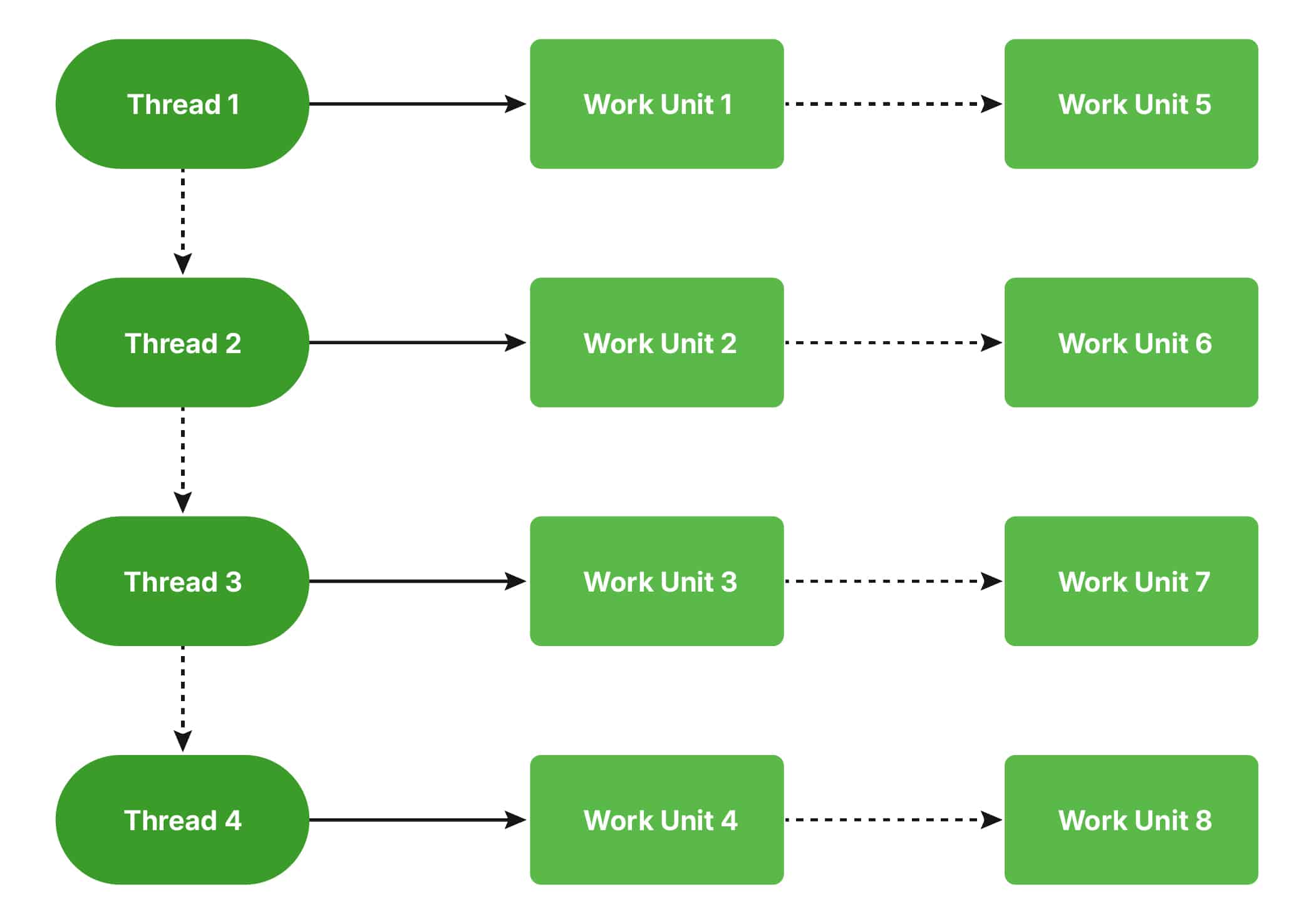
Visual representation
1. Sequential processing (Before multithreading):
A single thread processes one record at a time, resulting in extended execution times.

2. Parallel processing (After multithreading):
Multiple threads process independent records simultaneously, significantly reducing total execution time.
Step-by-step tutorial: Implementing batch multithreading in D365FO
One of the fundamental steps in implementing multithreading is defining a batch job that generates multiple tasks (threads). In this setup, users can determine the number of parallel threads that should be executed simultaneously.
To facilitate this, we introduce a parameterized approach that allows users to specify the desired thread count. This ensures flexibility in managing system resources efficiently.
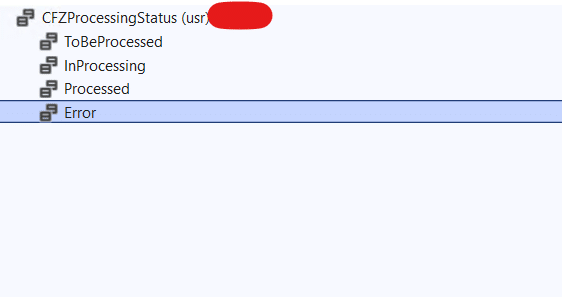
Step 1: Create a processing status Enum
Before initiating the multithreading process, define a processing status Enum. This Enum will help track the status of work units within the staging table. It ensures that records are correctly assigned, processed, and updated, preventing conflicts and maintaining data integrity.
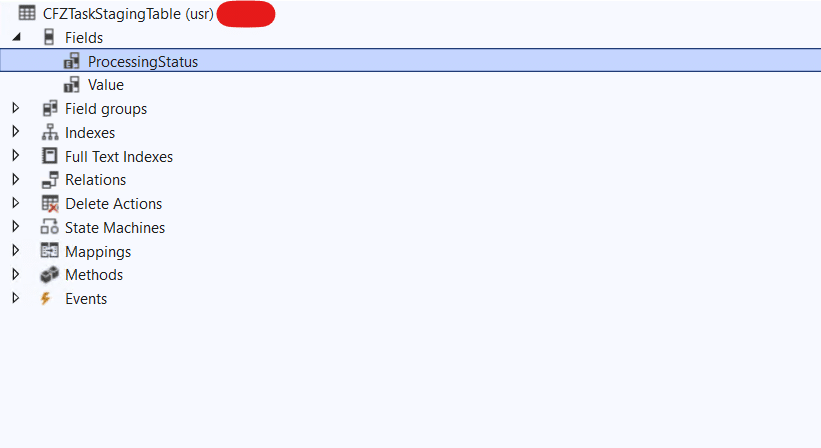
Step 2: Create a staging table
Define a staging table that will store the data to be processed. This table should include at least two key fields:
- Processing status – Tracks the state of the record (e.g., Pending, In Progress, Completed).
- Value field – Represents the data to be processed.
This structured approach ensures that batch jobs can efficiently distribute and track work units.
Step 3: Define a contract class
First, in Visual Studio, create a new class named CFZMultiThreadTaskContract. This class adds a parameter to the dialog form, allowing the user to specify the number of threads to run.
[DataContractAttribute]
public class CFZMultiThreadTaskContract
{
int numberOfThreads;
[DataMemberAttribute,
SysOperationLabel(literalStr(“Number of threads”))]
public int parmNumberOfThreads(int _numberOfThreads = numberOfThreads)
{
numberOfThreads = _numberOfThreads;
return numberOfThreads;
}
}
Step 4: Implement a controller class
Next, create a class named CFZ_MultiThreadCreateTasksController. This class is responsible for setting up the necessary components and instructing the system on which method to execute. In this case, it directs execution to the process method in the CFZ_MultiThreadCreateTaskService class.
public class CFZMultiThreadCreateTasksController extends SysOperationServiceController
{
protected void new()
{
super(classStr(CFZMultiThreadCreateTaskService),
methodStr(CFZMultiThreadCreateTaskService, process), SysOperationExecutionMode::Synchronous);
}
public ClassDescription defaultCaption()
{
return “Create multithreading tasks”;
}
public static CFZMultiThreadCreateTasksController construct(SysOperationExecutionMode _executionMode = SysOperationExecutionMode::Synchronous)
{
CFZMultiThreadCreateTasksController controller = new CFZMultiThreadCreateTasksController();
controller.parmExecutionMode(_executionMode);
return controller;
}
public static void main(Args _args)
{
CFZMultiThreadCreateTasksController multiThreadingCreateTasksController = CFZMultiThreadCreateTasksController::construct();
multiThreadingCreateTasksController.parmArgs(_args);
multiThreadingCreateTasksController.startOperation();
}
}
Step 5: Develop a service class to manage task creation
- Implement a class named MultiThreadingCreateTasksService. This class is responsible for dynamically generating multiple execution threads based on the user-defined parameter.
- Ensure that the correct number of batch tasks are created and distributed effectively, optimizing system resources and parallel processing capabilities.
- Utilize the Processing Status Enum to track the status of work units in the staging table.
- The system should loop through each record marked as ‘To Be Processed’, assign it to a thread, and update the status accordingly.
public class CFZMultiThreadCreateTaskService extends SysOperationServiceBase
{
public void process(CFZMultiThreadTaskcontract _contract)
{
BatchHeader batchHeader;
SysOperationServiceController controller;
CFZTaskStagingTable stagingTable;
int totalNumberOfTasksNeeded = _contract.parmNumberOfThreads();
int threadCount;
Args args = new Args();
select count(RecId) from stagingTable where
stagingTable.ProcessingStatus == CFZProcessingStatus::ToBeProcessed;
if (stagingTable.RecId > 0)
{
update_recordset stagingTable
setting ProcessingStatus = CFZProcessingStatus::InProcessing
where stagingTable.ProcessingStatus == CFZProcessingStatus::ToBeProcessed;
//batchHeader = BatchHeader::construct();
batchHeader = this.getCurrentBatchHeader();
//Creating tasks
for(threadCount = 1; threadCount <= totalNumberOfTasksNeeded; threadCount++)
{
controller = CFZMultiThreadCreateTasksController::construct();
batchHeader.addTask(controller);
}
batchHeader.save();
}
}
}
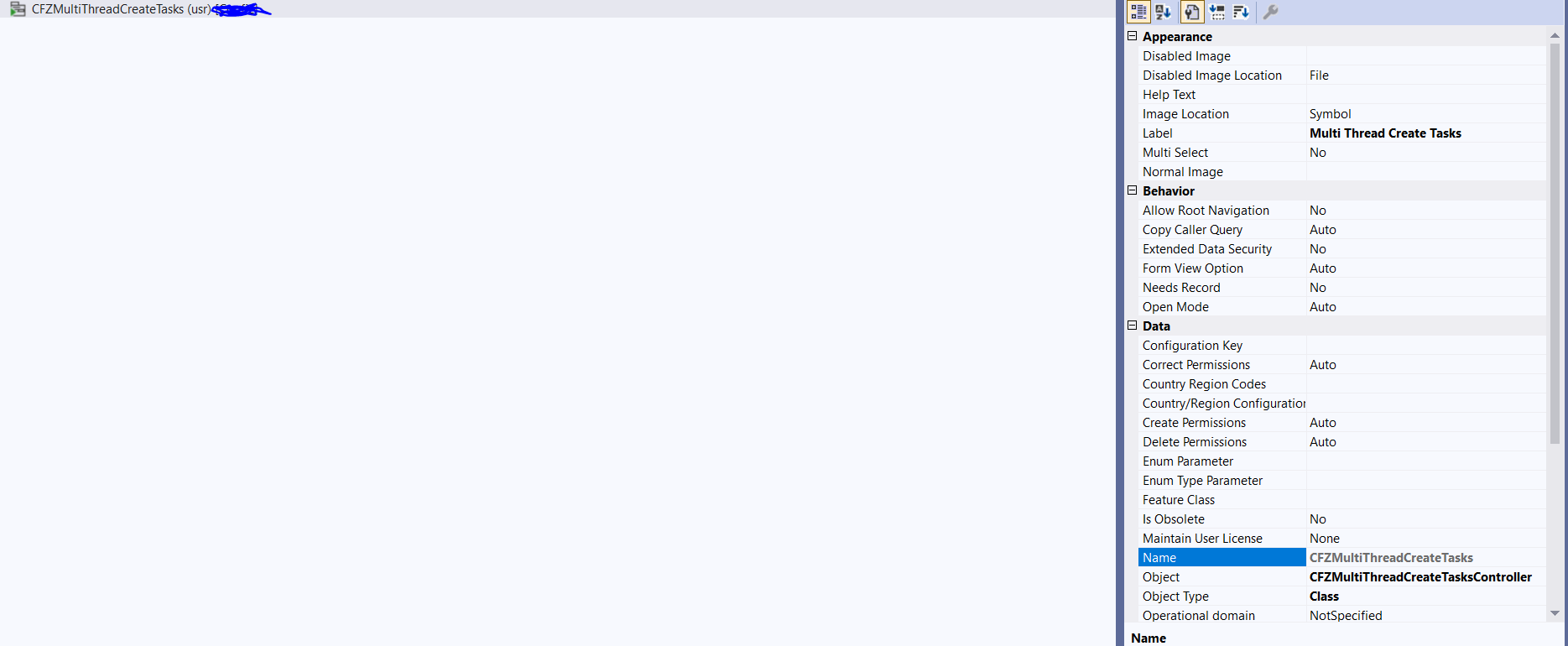
Step 6: Create an action menu item
- Define an Action Menu Item that triggers the Controller Class.
- Add this menu item to an existing Menu in D365FO to allow users to initiate the multithreading batch job seamlessly.
Example scenario: Fixing stopped tasks
Consider a scenario where five tasks (threads) are processing 1000 staged records. Initially, each thread is actively processing records. However, as some threads finish their assigned tasks, they may check for new records and find none, causing them to stop.
Meanwhile, new records are inserted into the staging table, and only the remaining active threads continue processing them. The stopped threads do not automatically resume, leading to uneven workload distribution and reduced performance.
Fixing stopped tasks
To address this issue, implement an intermediate status value, such as ‘In Processing’. This ensures that all records currently in the system are assigned before execution starts.
With this approach:
- The system only processes records available at the start of the job.
- Once all assigned records are processed, tasks stop execution.
- A subsequent recurrence of the batch job picks up any newly inserted records.
Step 1: Create a work unit controller class
First, create a class named CFZMultiThreadGetWorkItemController. Similar to before, this sets up some components and tells the system what method to call. In this case, the process method on the CFZMultiThreadGetWorkItemControllerclass.
public class CFZMultiThreadGetWorkItemController extends SysOperationServiceController
{
protected void new()
{
super(classStr(CFZMultiThreadGetWorkItemService),
methodStr(CFZMultiThreadGetWorkItemService, process), SysOperationExecutionMode::Synchronous);
}
public ClassDescription defaultCaption()
{
return “Get work item”;
}
public static CFZMultiThreadGetWorkItemController construct(SysOperationExecutionMode _executionMode = SysOperationExecutionMode::Synchronous)
{
CFZMultiThreadGetWorkItemController controller = new CFZMultiThreadGetWorkItemController();
controller.parmExecutionMode(_executionMode);
return controller;
}
public static void main(Args _args)
{
CFZMultiThreadGetWorkItemController multiThreadingGetWorkItemController = CFZMultiThreadGetWorkItemController::construct();
multiThreadingGetWorkItemController.parmArgs(_args);
multiThreadingGetWorkItemController.startOperation();
}
}
Step 2: Implement the service class
Second, create the class CFZMultiThreadGetWorkItemService.
public class CFZMultiThreadGetWorkItemService extends SysOperationServiceBase
{
public void process()
{
CFZTaskStagingTable stagingTable;
stagingTable.readPast(true);
do
{
try
{
ttsBegin;
select pessimisticlock firstOnly stagingTable
where stagingTable.ProcessingStatus == CFZProcessingStatus::InProcessing;
if (stagingTable)
{
CFZProcessStagingTable::processStagingTableRecord(stagingTable);
stagingTable.ProcessingStatus = CFZProcessingStatus::Processed;
stagingTable.update();
}
ttscommit;
}
catch
{
//revert data
ttsabort;
//log errors
}
}
while (stagingTable);
}
}
Pessimistic lock and ReadPast
There are four key concepts to understand in order to ensure multithreading works effectively.
First, each task must retrieve a unique record that no other tasks are processing. The pessimistic keyword locks the record, preventing other processes from modifying it, while firstOnly ensures only one record is selected.
select pessimisticlock firstOnly stagingTable
where stagingTable.ProcessingStatus == CFZProcessingStatus::InProcessing;
Second, to ensure each task selects a different record, use the readPast method. This tells the system to skip rows locked by other processes.
Third, once a record is selected, it is processed independently by another class to maintain modularity and autonomy.
CFZProcessStagingTable::processStagingTableRecord(stagingTable);
Fourth, update the processing status after completing a task to prevent re-processing.
Choosing between pessimistic lock and ReadPast
| Scenario | Use Pessimistic Lock | Use ReadPast |
| When strict record processing order is needed | ✅ | ❌ |
| When skipping locked records is acceptable | ❌ | ✅ |
| High-concurrency scenarios | ❌ | ✅ |
| Ensuring no duplicate record processing | ✅ | ❌ |
Process record class
Finally, create a separate class that is able to process a single work item, or in this case staging table record. This class should NOT be a SysOperation framework class. See this class as an example.
public class CFZProcessStagingTable
{
public static void processStagingTableRecord(CFZTaskStagingTable _stagingTable)
{
//process the data in the record.
info(strfmt(“Value is %1”, _stagingTable.Value));
sleep(5000);
}
}
Final results
To test the job, write a runnable class (job) or execute your own process to insert records into your staging table. For this demonstration, I inserted 200 records for testing purposes. This allows us to verify how the multithreading mechanism efficiently processes records in parallel, ensuring optimal performance and reducing execution time.
public class CFZCreateStagingRecords
{
/// <summary>
/// Runs the class with the specified arguments.
/// </summary>
/// <param name = “_args”>The specified arguments.</param>
public static void main(Args _args)
{
int i;
CFZTaskStagingTable stagingTable;
for (i=0; i <= 200; i++)
{
stagingTable.ProcessingStatus = CFZProcessingStatus::ToBeProcessed;
stagingTable.Value = i;
stagingTable.insert();
}
Info(“done”);
}
}
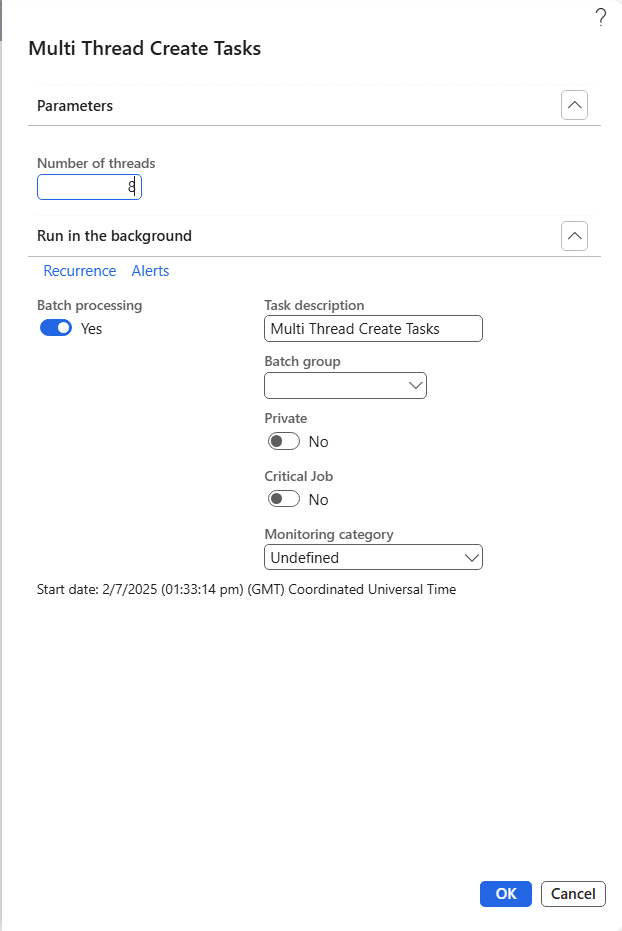
- Run the batch job that creates the threads, and specify 8 as the number of threads.

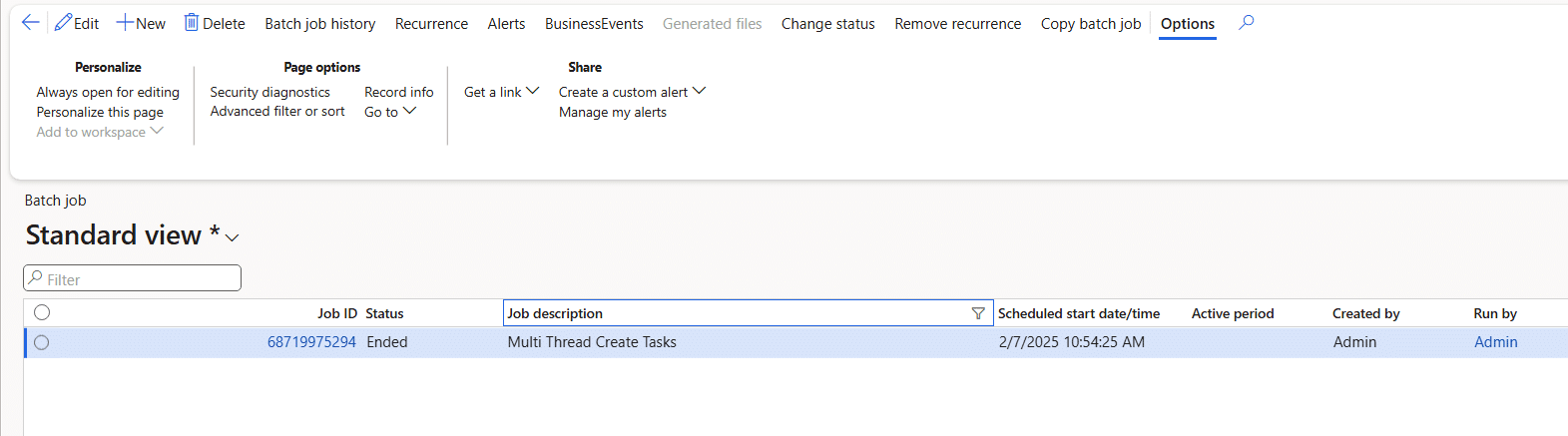
- Go to the System Administration>Inquiries>Batch jobs form. Then, locate the job with the description ‘Get work item’.
- Click on the job ID.
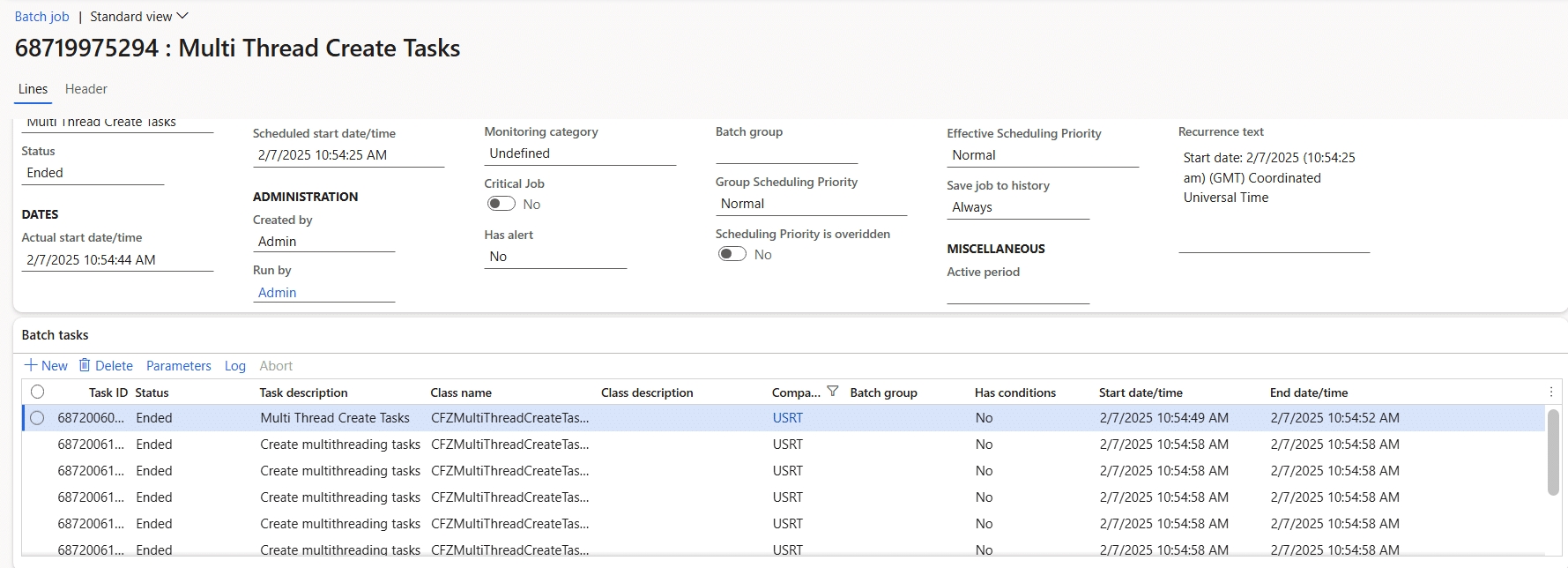
Additionally, analyze the start and end times of the tasks. The total processing time should be significantly lower than running the process in a single thread. For example, if processing 100 records sequentially takes 500 seconds, dividing the workload among 8 parallel threads could reduce this to approximately 66 seconds. This demonstrates the effectiveness of multithreading in D365FO batch jobs.
Accelerate growth at an unprecedented pace
Discover how Confiz can help you take control of your daily operations, increasing growth and revenue.
Book a Free ConsultationConclusion
Multithreading in Dynamics 365 Finance and Operations enables businesses to accelerate batch processing, enhance scalability, and make better use of system resources. With properly designed batch jobs, effective locking strategies, and efficient workload distribution, organizations can handle high-volume transactions and complex operations with greater speed and reliability.
For developers, leveraging X++ for parallel processing in Dynamics 365 Finance and Operations (F&O) provides a practical way to build scalable, enterprise-grade solutions that support long-term performance needs.
If you’re looking to enhance your Dynamics 365 F&O implementation, Confiz can help you design and deliver high-performance solutions. Contact us at marketing@confiz.com to get started.